

How we can help?
Popular Articles
With projects, users can add saved searches into folders and share them with team members. Team members will be able to view and add to the folder as well.
You can manage your projects from the Innovation Dashboard, in the bottom section.
Under the Flagged Data sections, you can see your current Projects.
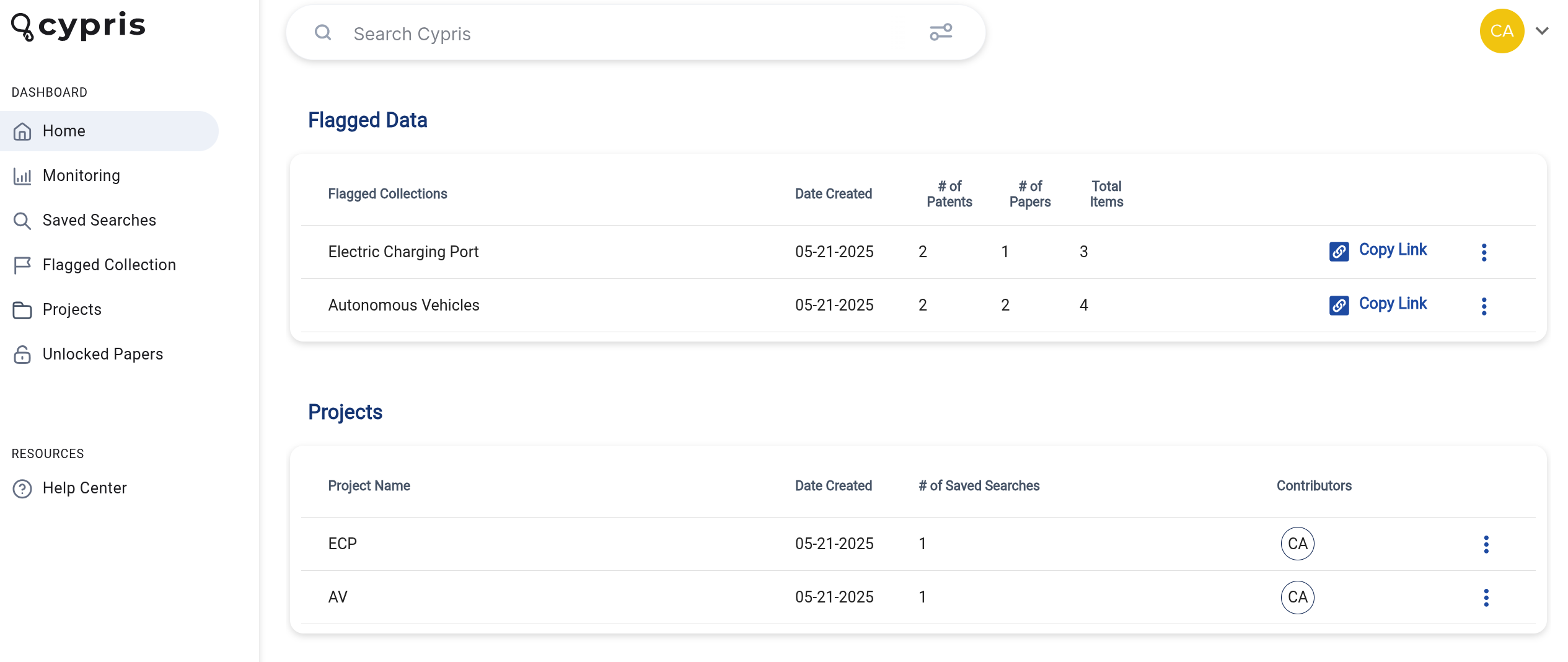
Select projects to view all current projects.
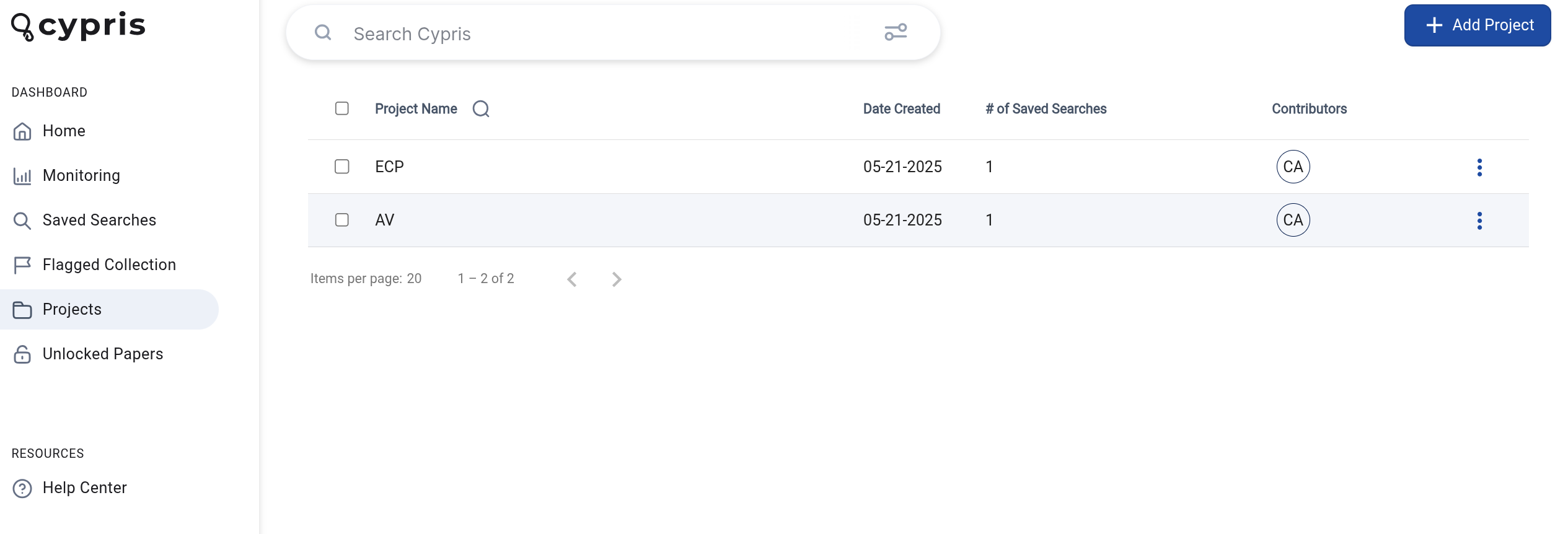
To create a new project, click the +add project button. In the pop-up window that appears, add your project name.
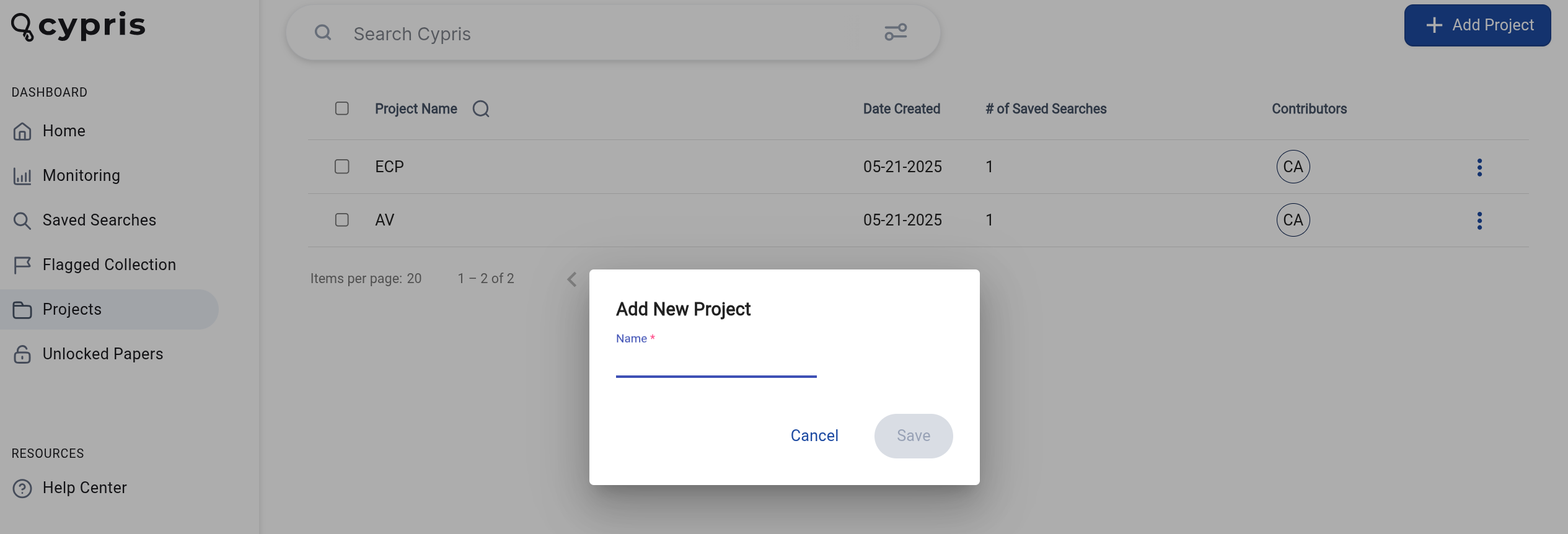
Click save after filling out the fields.
Adding Saved Searches to Projects
To add a saved search to the project, select + add saved search.
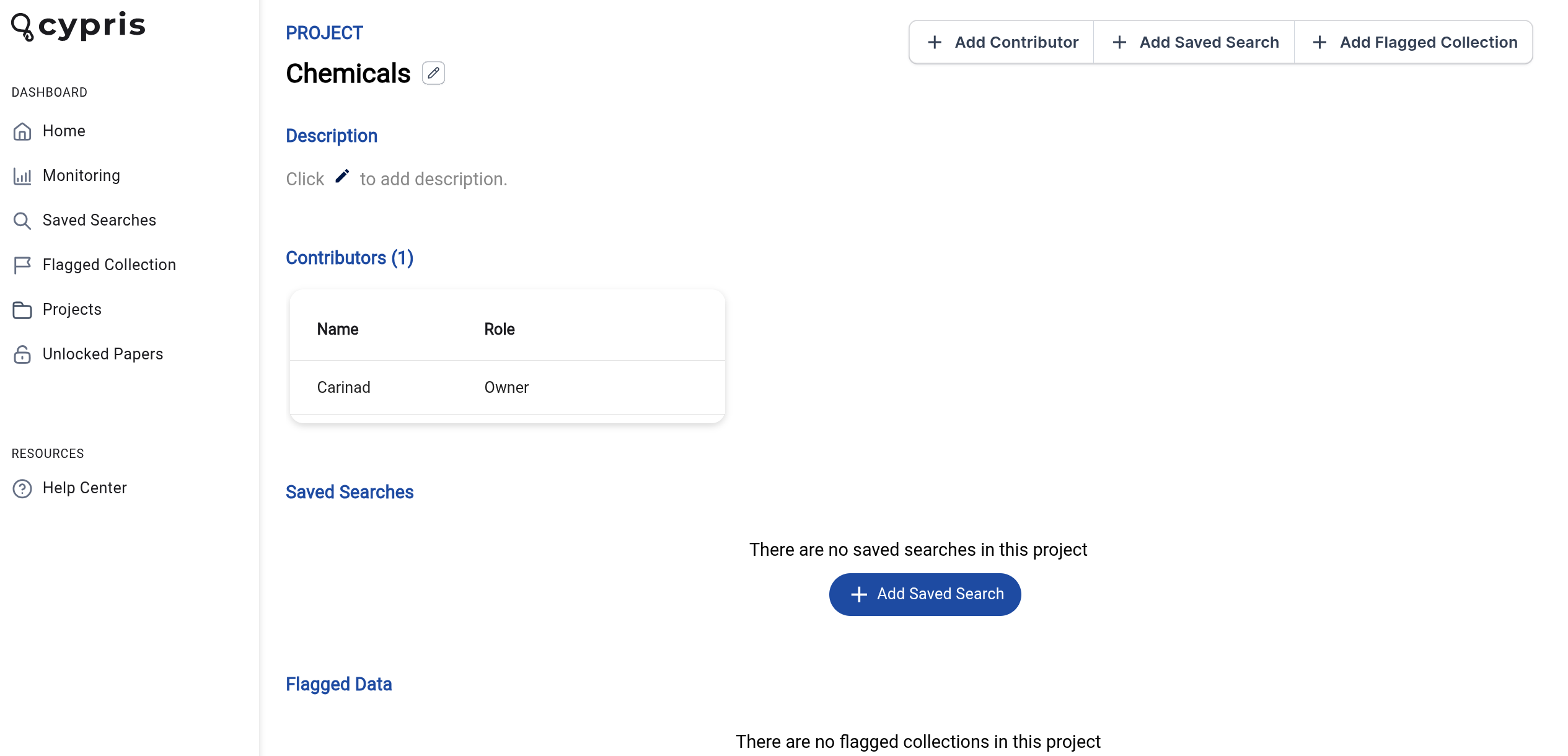
On the left side you’ll see saved searches you can choose to add to your selected project. On the right side, you’ll see current saved searches in the project. Click on any saved search to select it and use the arrows to move the saved search to the left or right.
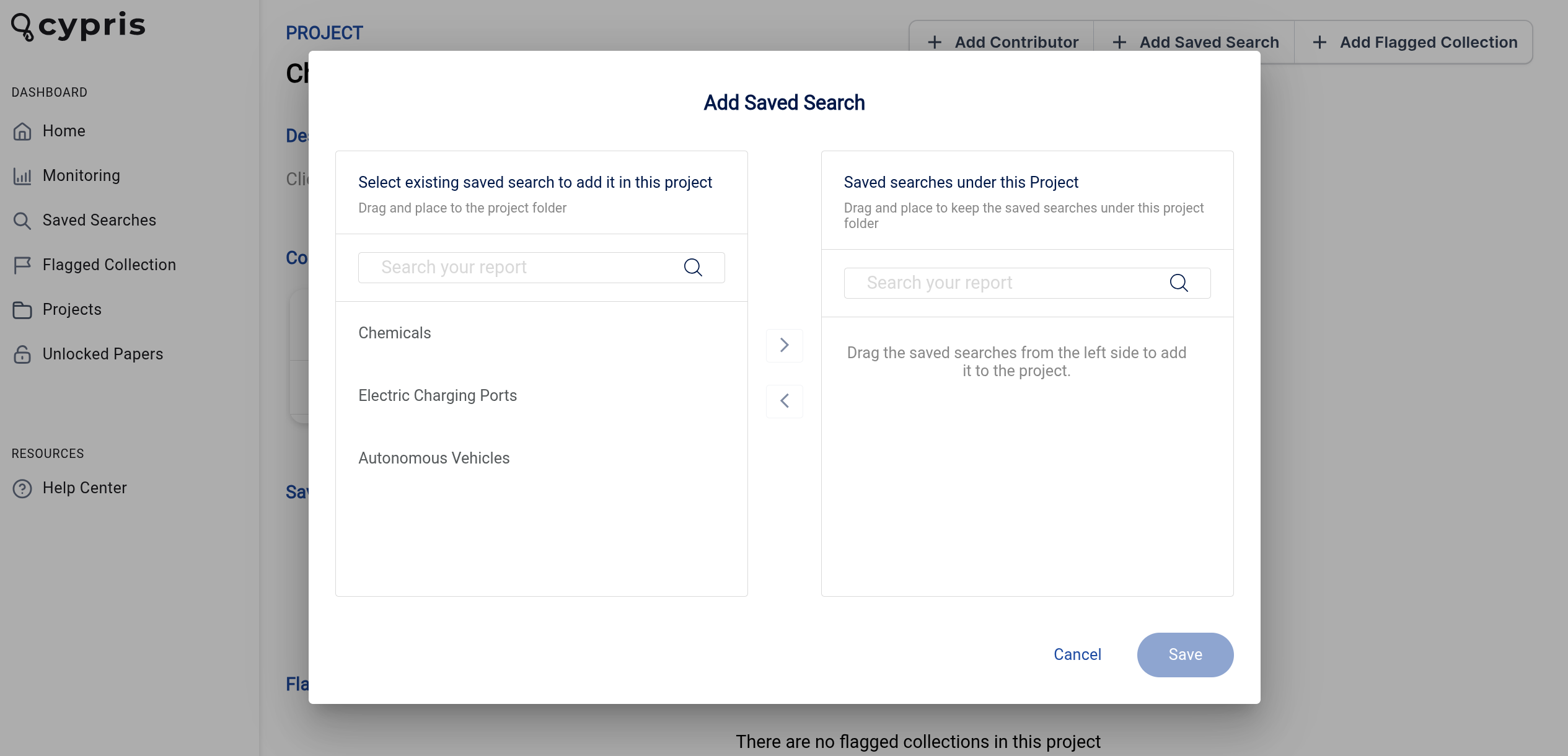
You can also use the search bar to search through searches more quickly.
Adding Flagged Data to Projects
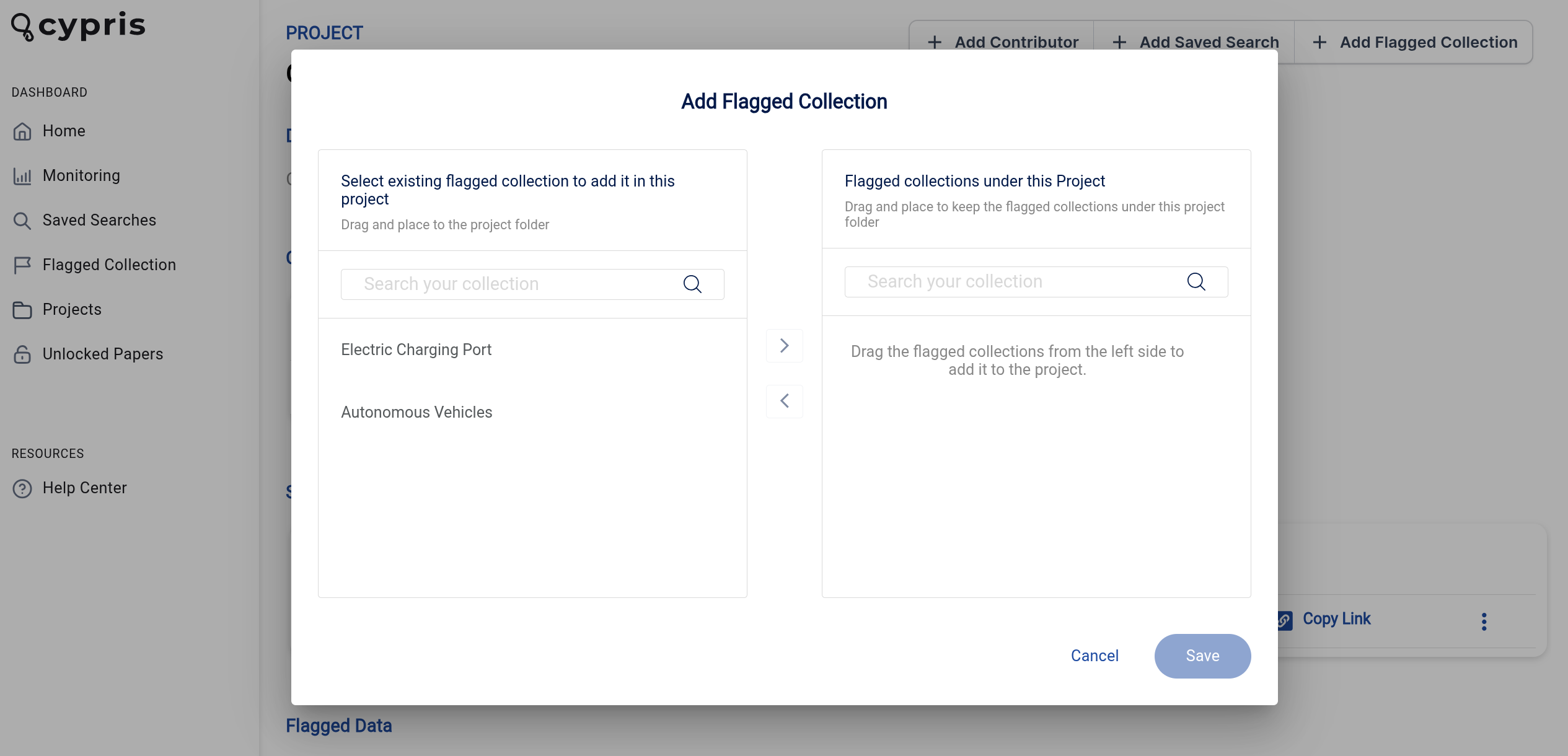
You can also add flagged data collections to your projects.
On the left side you’ll see existing flagged collections you can choose to add to your selected project. On the right side, you’ll see current collections in the project. Click on any collection to select it and use the arrows to move the collection to the left or right.
Adding Contributors
Click the +add contributor button within a project to add contributors to a project.
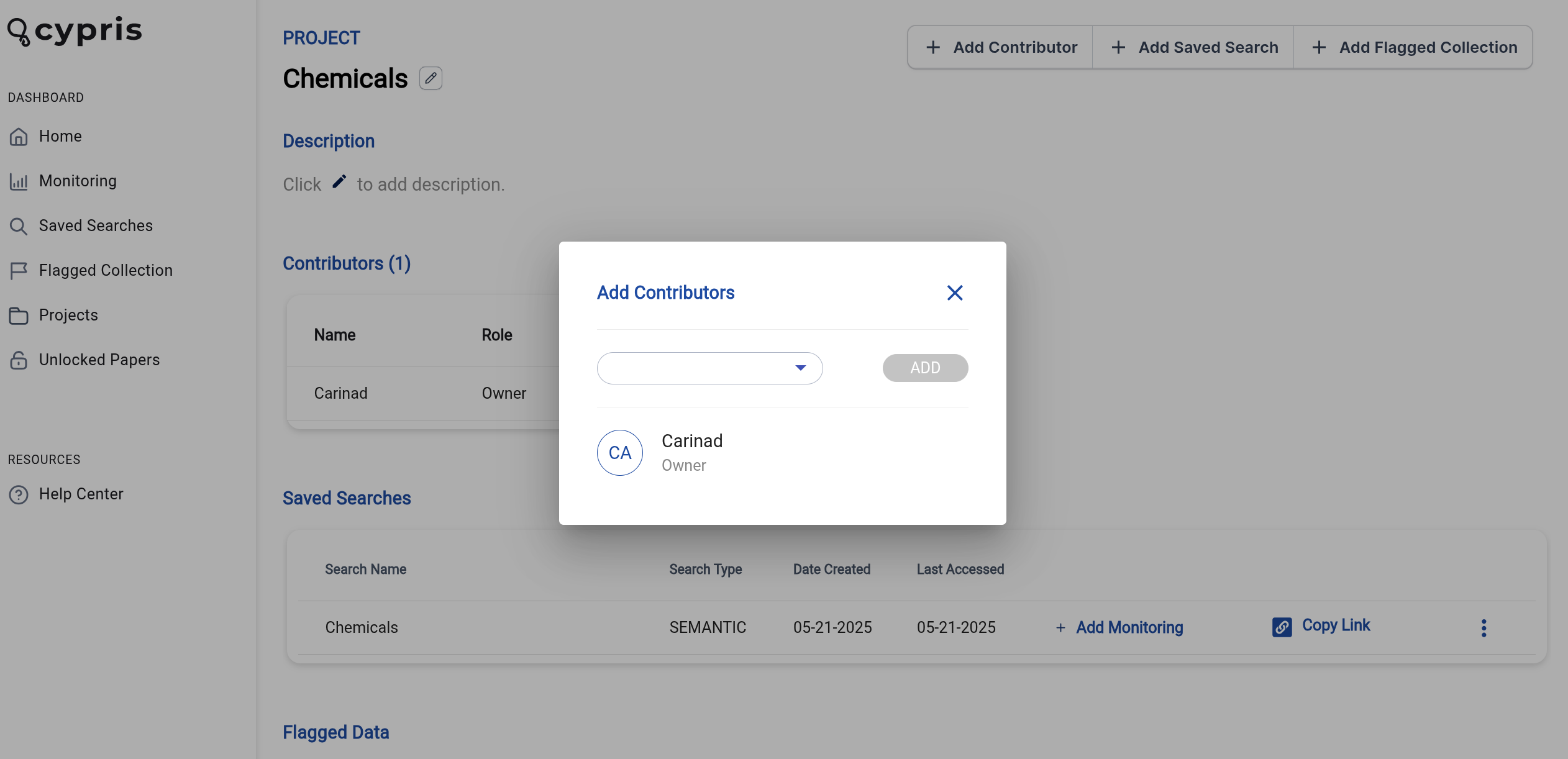
Select your team member's name and click add.
Contributors will have the ability to add saved searches and view items that are in the project folder.
How to Use Organization Monitoring
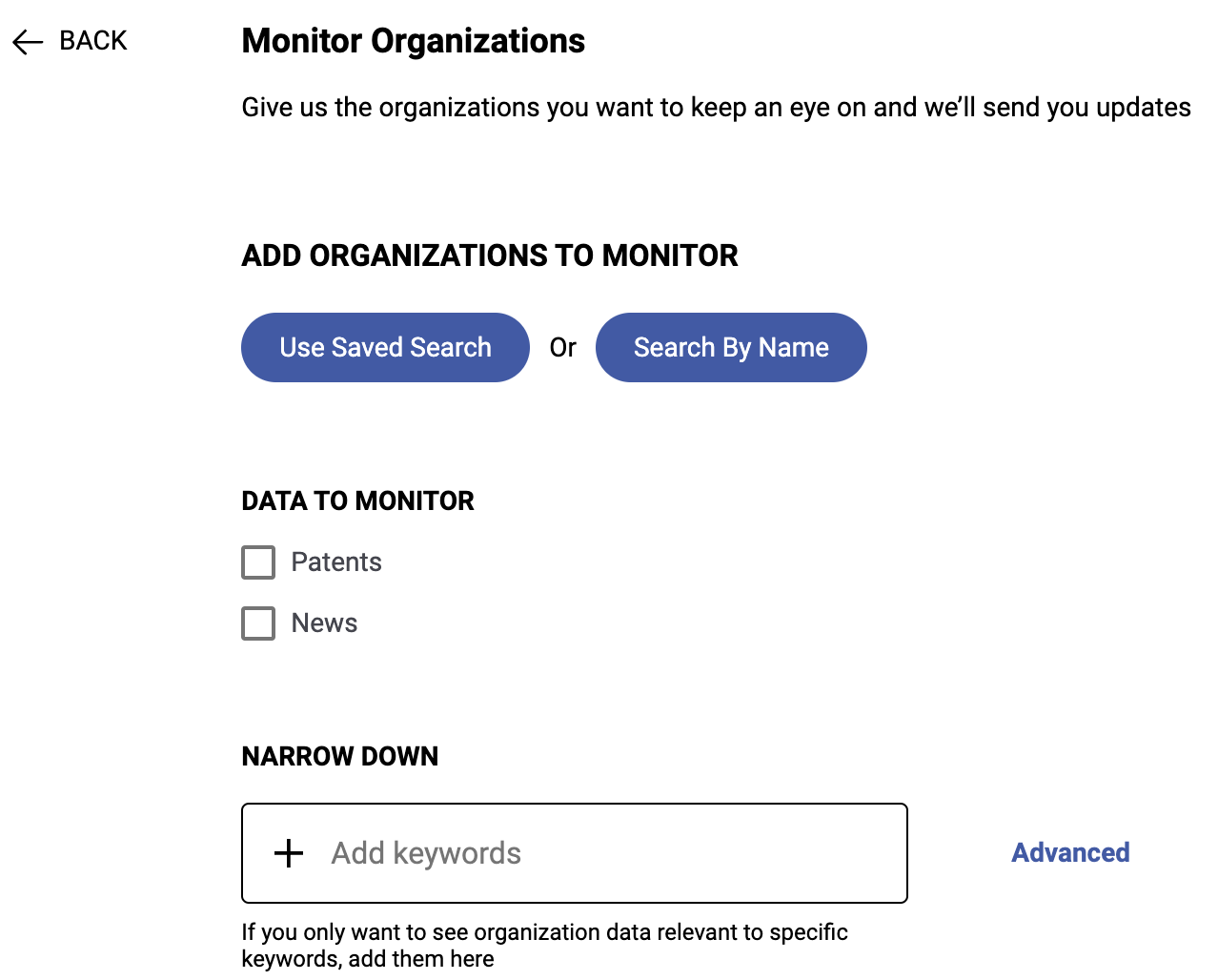
Organization monitoring will allow users to monitor patent and market news of the selected entities' names.
Before we get into the steps to set up monitoring, let's define a few terms that are important to understand at the start.
- Automated Monitoring: Cypris' method for sending updates on topics of your interest automatically to your email inbox, providing access to the datatypes hosted within the Cypris platform in a highly convenient and accessible way
- Saved Search: This refers to a report or the defining query of a report that you've already built and saved to your Cypris account. These saved searches are represented as reports in the "Reports" section of the Cypris platform landing page.
- Recipients: The people who will receive the automated monitoring deliveries, specified by entering their emails within the set-up process
- Frequency: The cadence which you will receive updates on that monitoring instance.
You Can Set Up Organization Monitoring in Two Ways:
Method A: Use Saved Search
"Used Saved Search" will allow users to use a previously built saved Company search
- Used Saved Search will allow users to use a previously built saved company search
- Once the report is selected, select the data types you are interested in monitoring. Users can select Patent and/or News when monitoring organizations
- After the data is selected, click Add Recipients
- Once the recipients are added, click Add Frequency
- Select the frequency of your choice and select the day of the week that you would like to receive your monitoring report and subsequent update
- Finally, select Create Monitoring
Method B: Search By Name
"Search by Name" enables you to conduct a fresh search for entities to track as opposed to using a previously saved search
- Click Search by Name and in the "Organization Name" search bar at the top of the page, start searching for entities of interest
- After selecting the entities of interest, click add organization in the top right corner of the page
- After the organizations are added, select the data types you are interested in monitoring. Users can select Patent and/or News
- After the data is selected, click Add Recipents
- Once the recipients are added, click Add Frequency
- Select the frequency of your choice and select the day of the week that you would like to receive your monitoring report and subsequent updates
- Finally, select Create Monitoring
What Comes Next
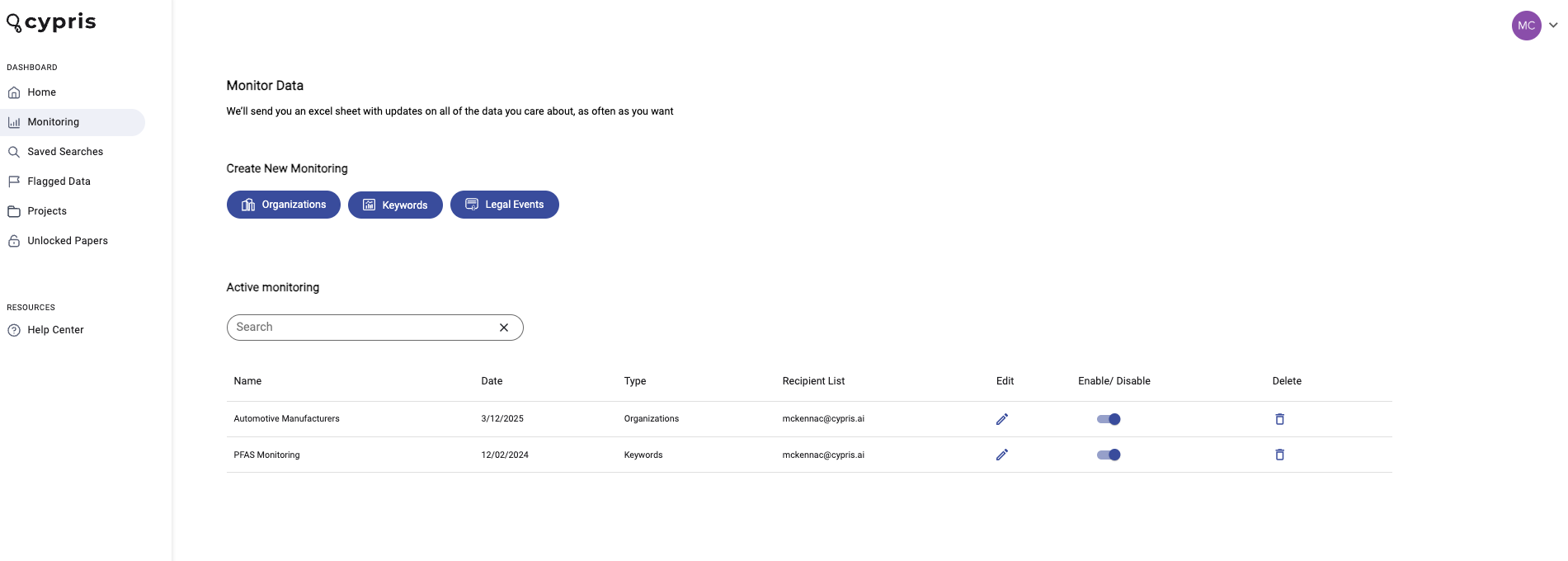
Once you finish setting it up, the monitoring campaign will be displayed as an item on the monitoring dashboard. You will get automated emails with the content matching your monitoring parameters on the cadence you specified in the set up. If there is not content matching your criteria at the time of delivery, you will receive an email stating that finding.
Editing Active Monitoring
From the monitoring page, you cal also enable/disable monitoring using the toggle, as well as delete or edit current monitoring you have running.
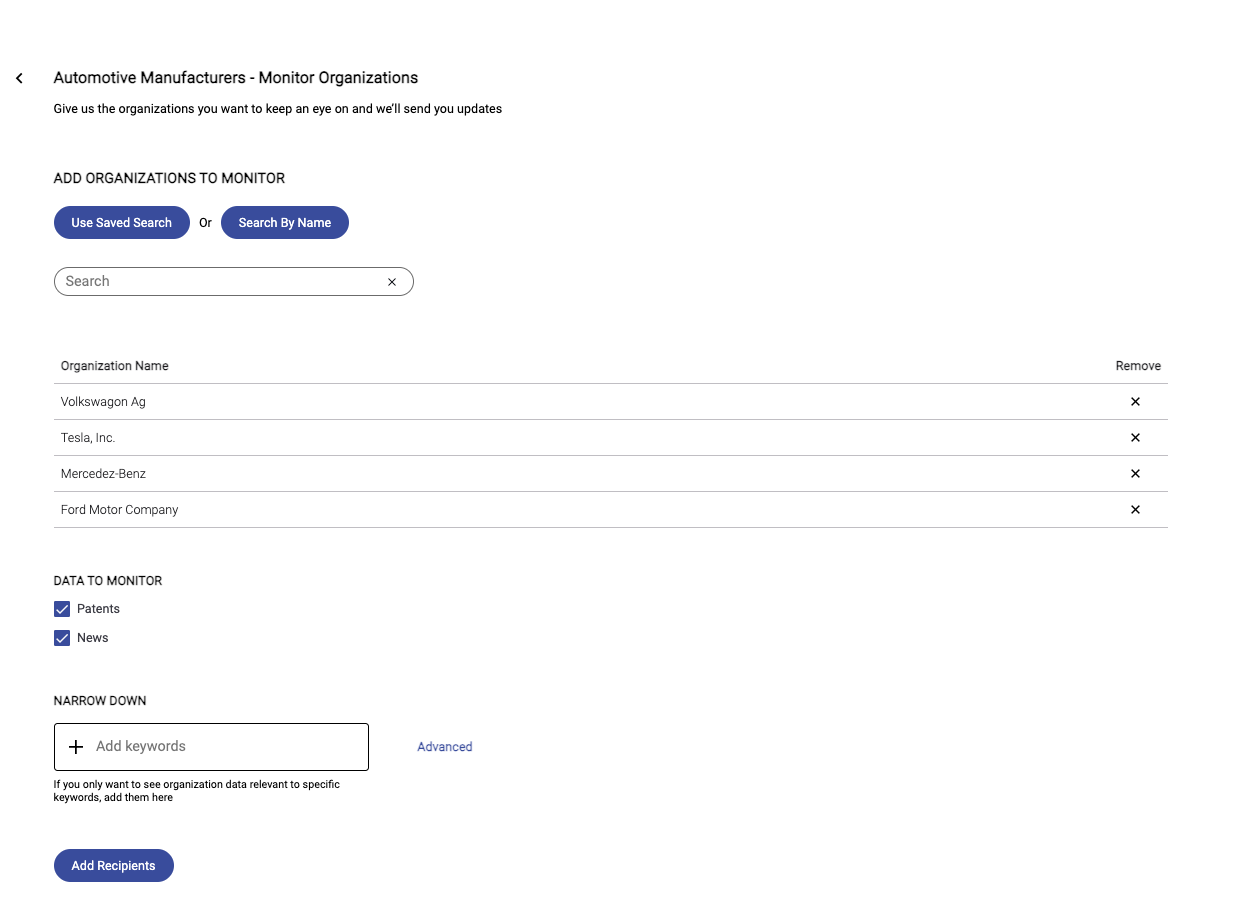
Selecting edit will take you to the following view, where you can quickly make changes.
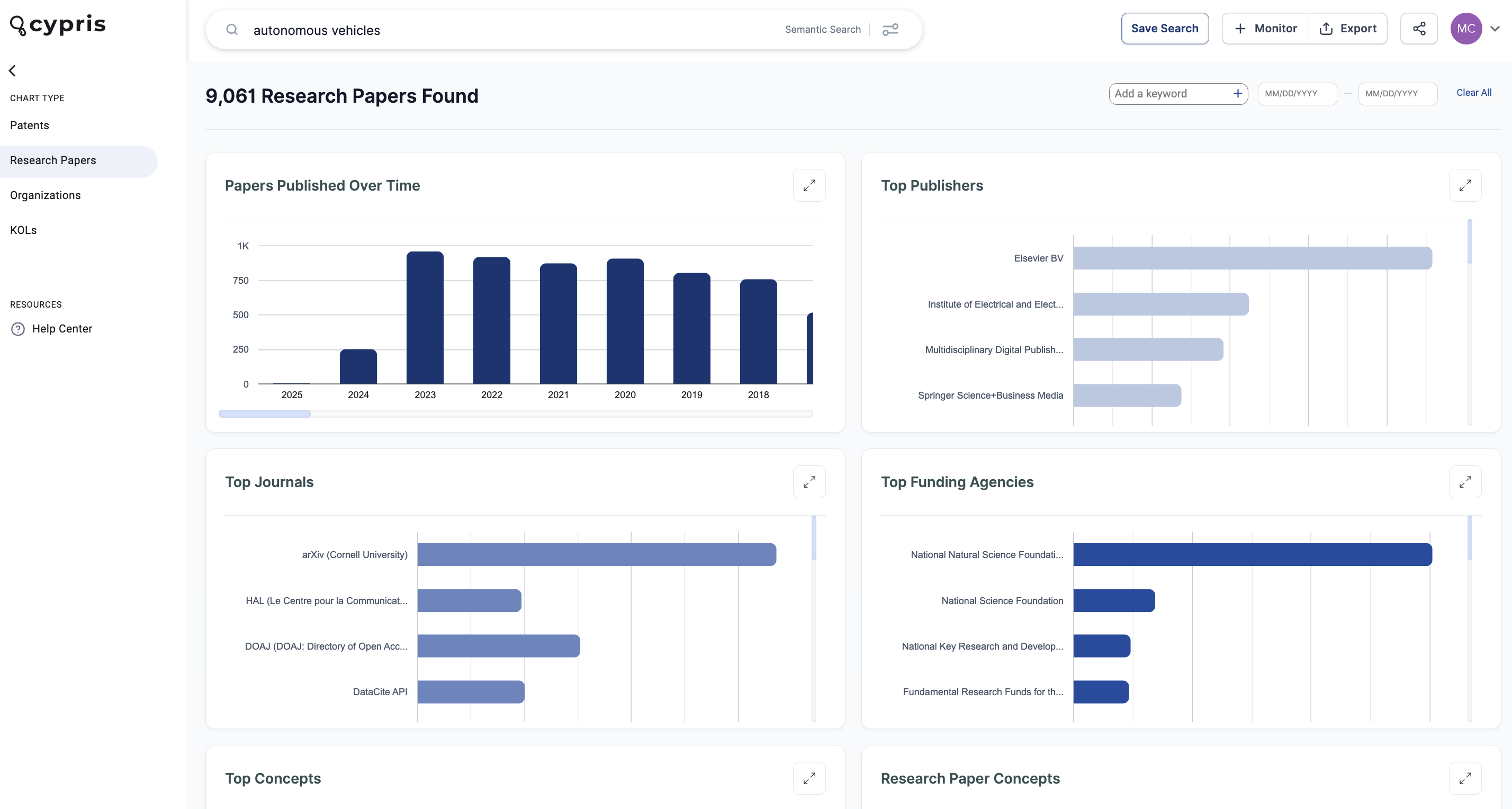
We’re excited to announce the launch of a few new features on the Cypris platform: Charts & Analytics Tab, Research Paper Citations, and Author Institutions.
Why We Built These Features
Charts & Analytics
The new Charts & Analytics tab was designed to enhance the exploration of search results. It provides a more insightful experience, enabling you to gain a holistic and detailed view of the data returned from a query.
Key Benefits
- Trend Analysis: Go beyond basic "over time" charts to uncover deeper insights. Track the influence of key inventors or organizations, visualize research focus areas, and discover emerging trends in innovation.
- Dedicated Charts for Each Data Type: Separate, easy-to-navigate tabs for research papers, patents, organizations, and KOLs.
- Centralized Insights: All Charts & Analytics data is now available in a single, centralized location, making it easier to uncover trends and identify insights from search results.
Research Paper Citations & Author Institutions Filter
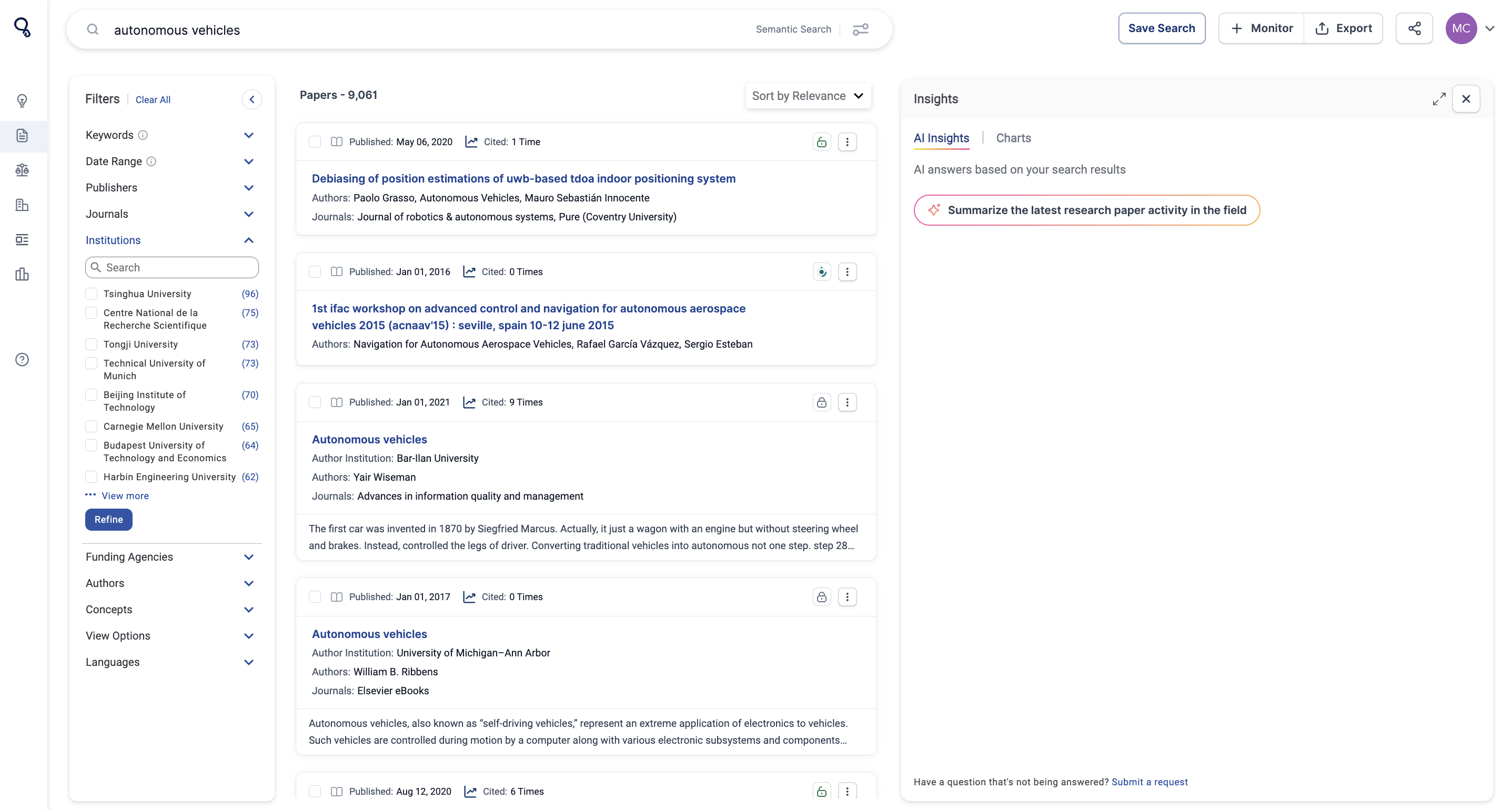
Users can now sort by ‘most cited’ in the research papers tab and filter by the author’s institution.
Key Benefits
- Paper citations are a powerful tool for identifying the most impactful research within a query.
- Our platform provides publisher-agnostic citation data across 11,000 journals, ensuring users can access accurate information on which pieces of scientific literature deserve their attention.
- By sorting by ‘most cited’ and then applying the Author Institutions filter, users can connect the dots to uncover the most influential research institutions in a given field, based on which organizations have the most cited papers.
User Needs Addressed
These features address several key needs:
- Centralized Visualizations: All data visualizations are now consolidated into one dedicated area on the dashboard.
- Identify High-Impact Research: Sort by ‘most cited’ to see the most impactful research in a field.
- Analyze Leading Institutions: Uncover the top research institutions in a field through the institutions filter.
How It Works
Charts & Analytics
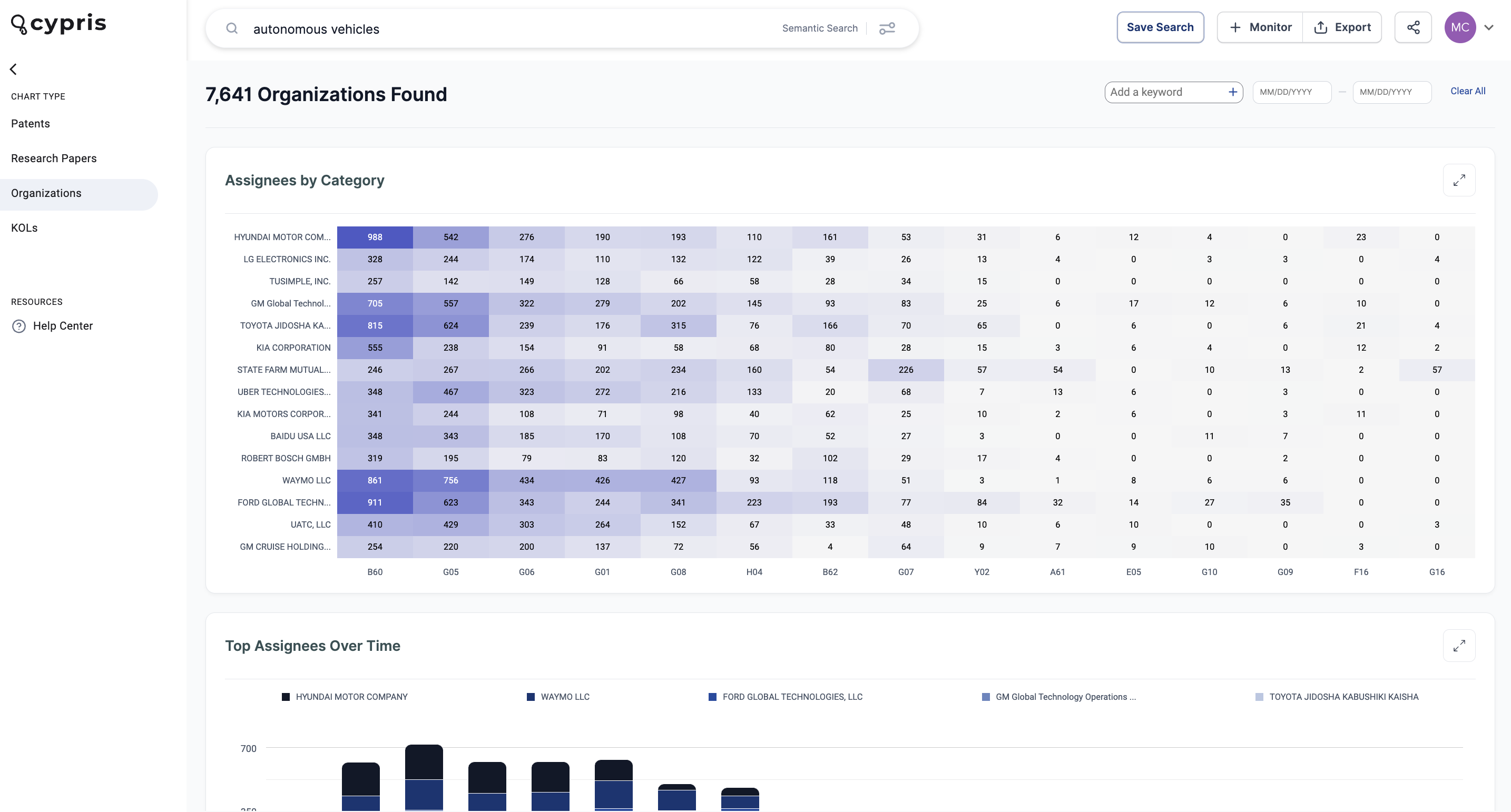
The Charts & Analytics tab offers four types of visualizations: Patents, Research Papers, Organizations, and Key Opinion Leaders (KOLs). Here's how to use it:
- Run a search and navigate to the Charts & Analytics tab on the left side of the platform.
- Choose from four options: Patents, Research Papers, Organizations, or KOLs.
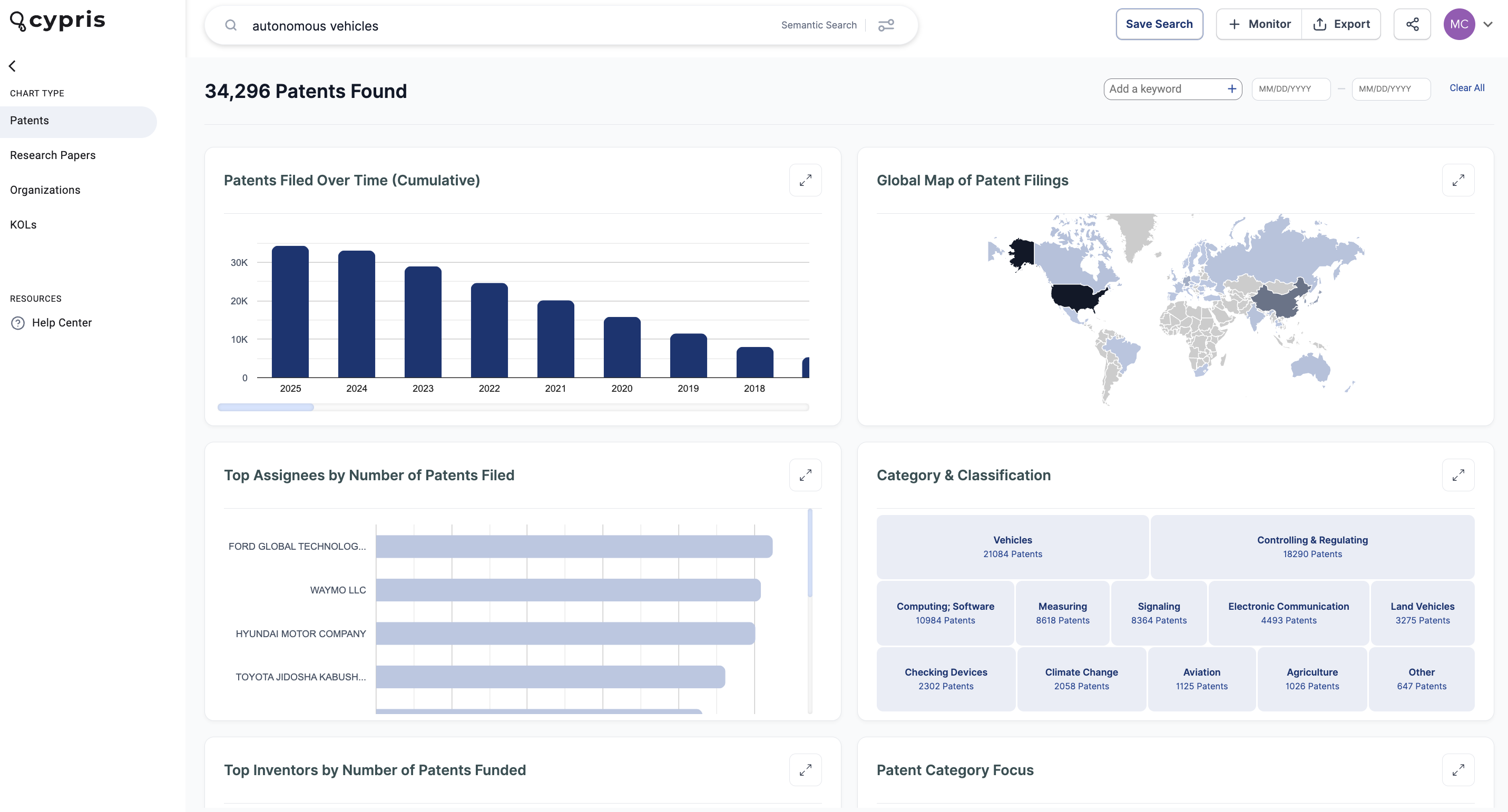
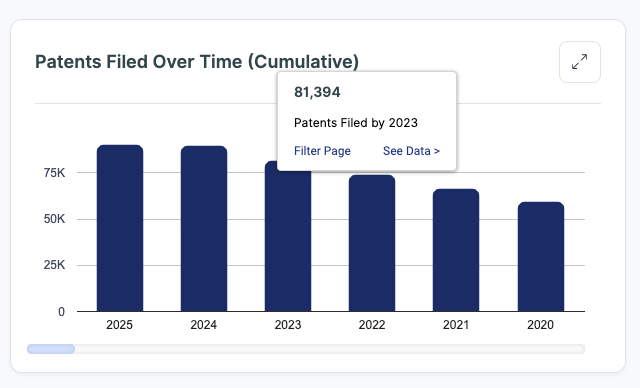
- Each chart allows you to filter the data on the page or click the "See Data" button to explore detailed insights for the selected chart.
Research Paper Citations & Author Institutions Filter
In the Research Papers section, you can now sort results by the most cited papers and view their citation counts. Additionally, a new filter on the left-hand side allows you to narrow results by Author Institutions for more targeted exploration.
How to Use Legal Event Monitoring
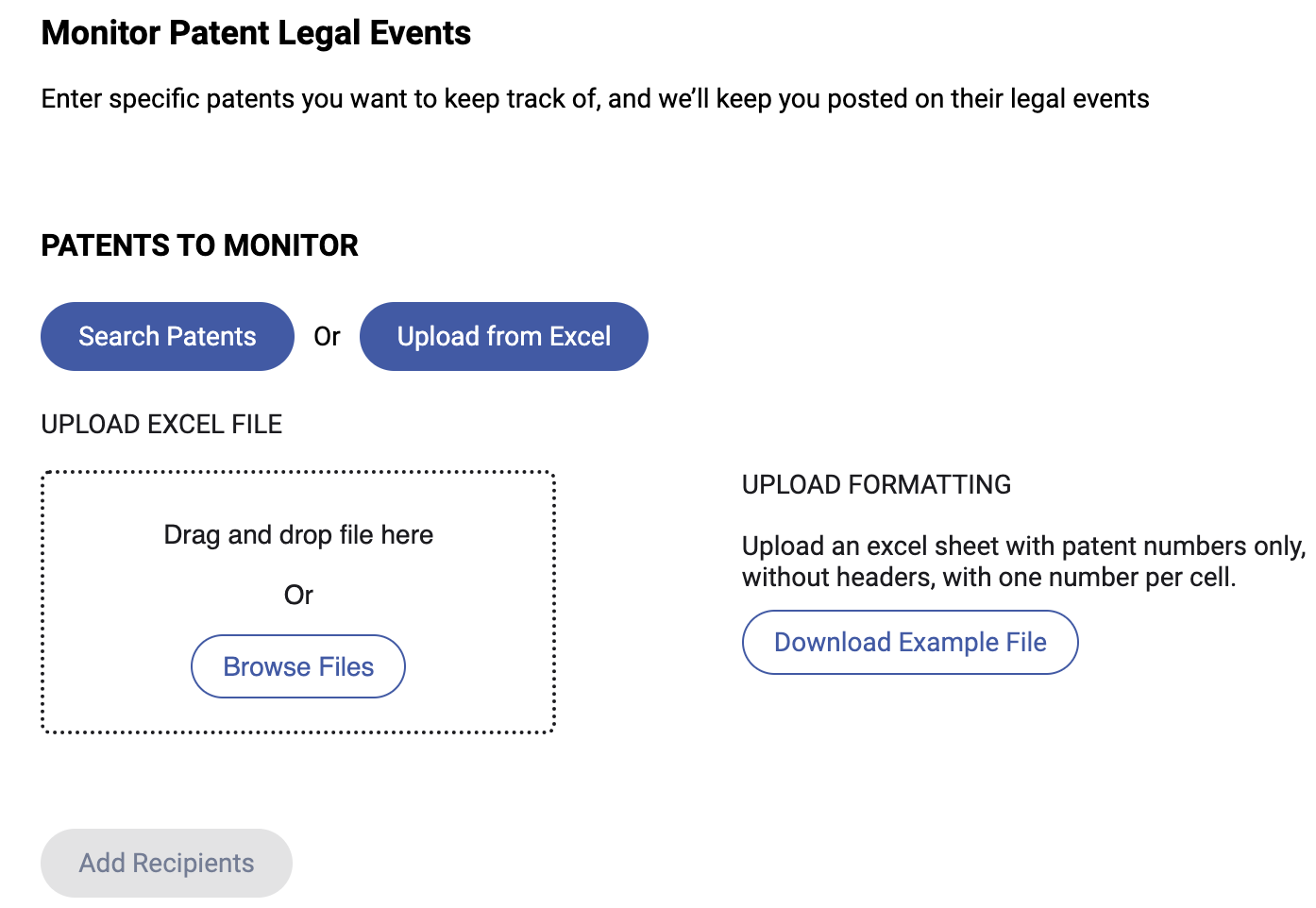
Legal Events Monitoring allows users to monitor the most recent legal events of a list of selected patents
Before we get into the steps to set up monitoring, let's define a few terms that are important to understand at the start.
- Automated Monitoring: Cypris' method for sending updates on topics of your interest automatically to your email inbox, providing access to the datatypes hosted within the Cypris platform in a highly convenient and accessible way
- Saved Search: This refers to a report or the defining query of a report that you've already built and saved to your Cypris account. These saved searches are represented as reports in the "Reports" section of the Cypris platform landing page.
- Recipients: The people who will receive the automated monitoring deliveries, specified by entering their emails within the set-up process
- Frequency: The cadence which you will receive updates on that monitoring instance.
You Can Set Up Legal Events Monitoring in Two Ways:
Method A: Search Patents
- Search Patents will allow users to add individual patent numbers which can be monitored for most recent legal events
- Type in the individual patent number(s), hit enter to trigger the search, then select "+" button under Add on the right side of the page
- Once the patents are added, click Add Recipients
- Once the recipients are added, click Add Frequency
- Select the frequency of your choice and select the day of the week that you would like to receive your monitoring report and subsequent updates
- Finally, select Create Monitoring
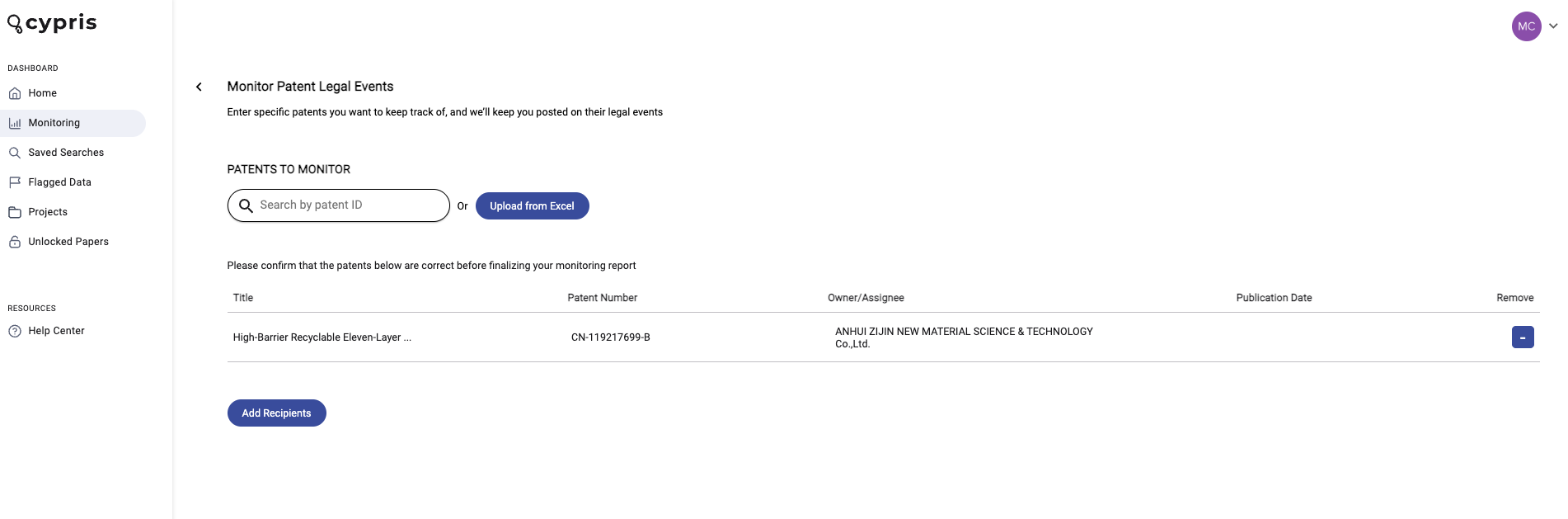
Method B: Upload from Excel
This method will allow user to upload a list of patents from Excel providing it is formatted correctly. Patent numbers must be in the left-most column with no header and can have only one patent number per row. For example, your first patent number should be in cell A1, the second in A2, the third in A3, and so on.
- Upload your Excel file containing the patent numbers for those you'd like to monitor for legal event updates. Should you need it, we have a correctly formated example excel file available for download directly on this page.
Note: It may take up to one minute for our system to extract the data from file - After the Excel Document is added and data extracted correctly, click Add Recipients
- Once the recipients are added, click Add Frequency
- Select the frequency of your choice and select the day of the week that you would like to receive your monitoring report and subsequent updates
- Finally, select Create Monitoring
What Comes Next
Once you finish setting it up, the monitoring campaign will be displayed as an item on the monitoring dashboard. You will get automated emails with the content matching your monitoring parameters on the cadence you specified in the set up. If there is not content matching your criteria at the time of delivery, you will receive an email stating that finding.
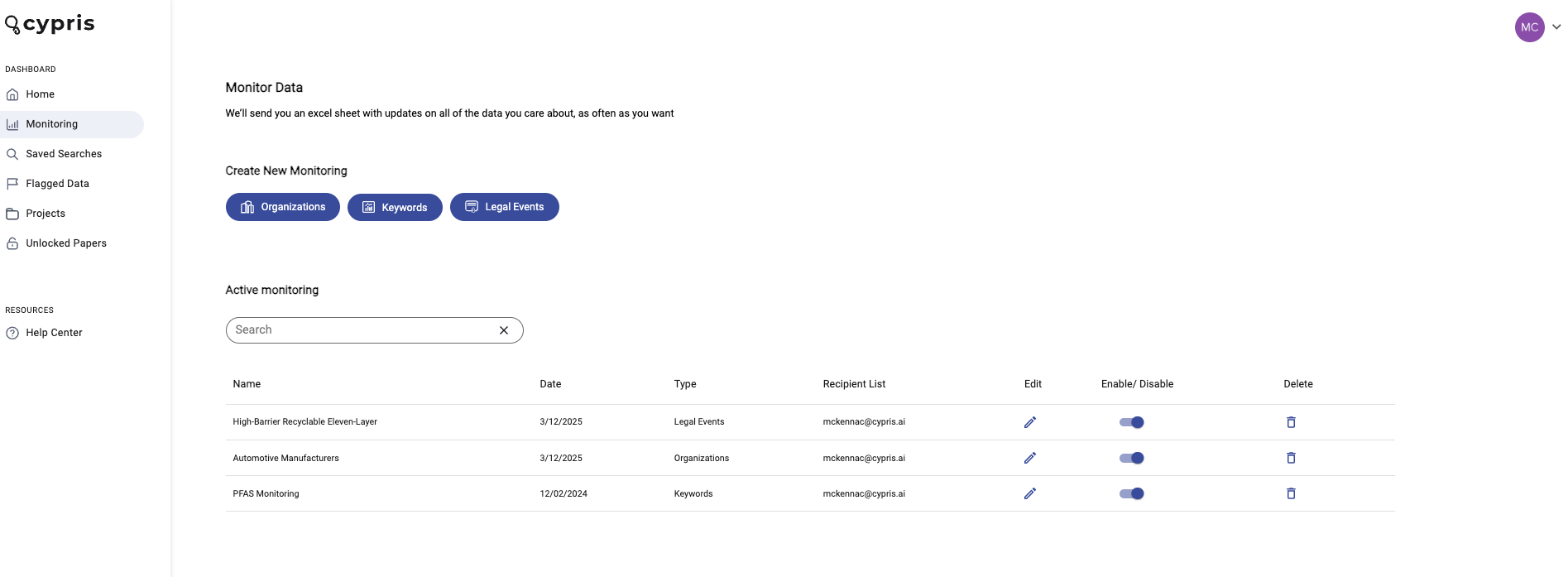
Editing Active Monitoring
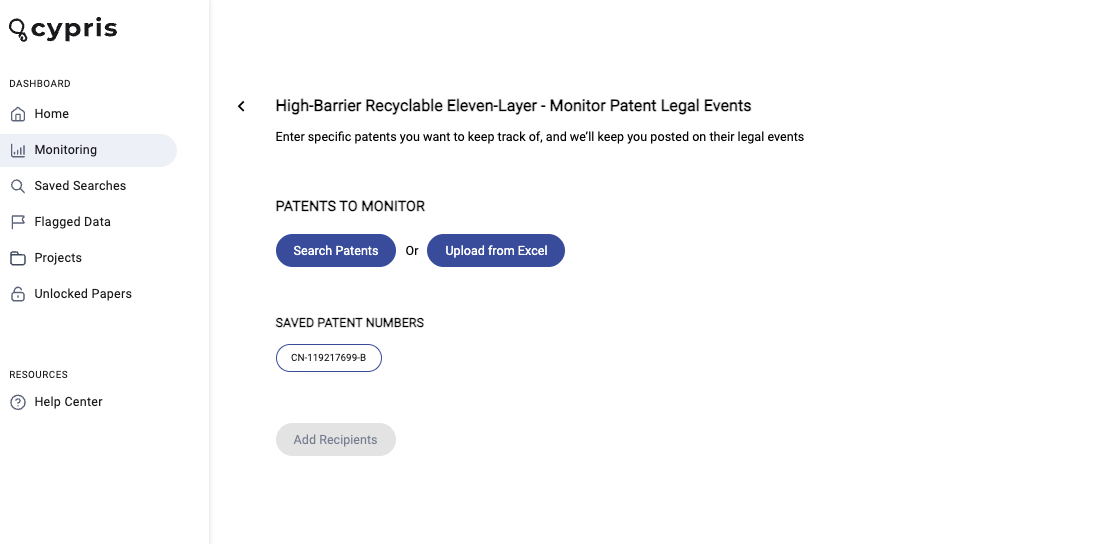
From the monitoring page, you cal also enable/disable monitoring using the toggle, as well as delete or edit current monitoring you have running.
Selecting edit will take you to the following view, where you can quickly make changes.
The Cypris Team has deployed a new UI that will allow for a more fluid search and discovery process, designed to create a lighter and more intuitive experience for users exploring new technologies and landscapes. With these upgrades, we aim to continuously enhance our platform's user interface, aligning with best UI practices to provide an elegant and seamless search experience.
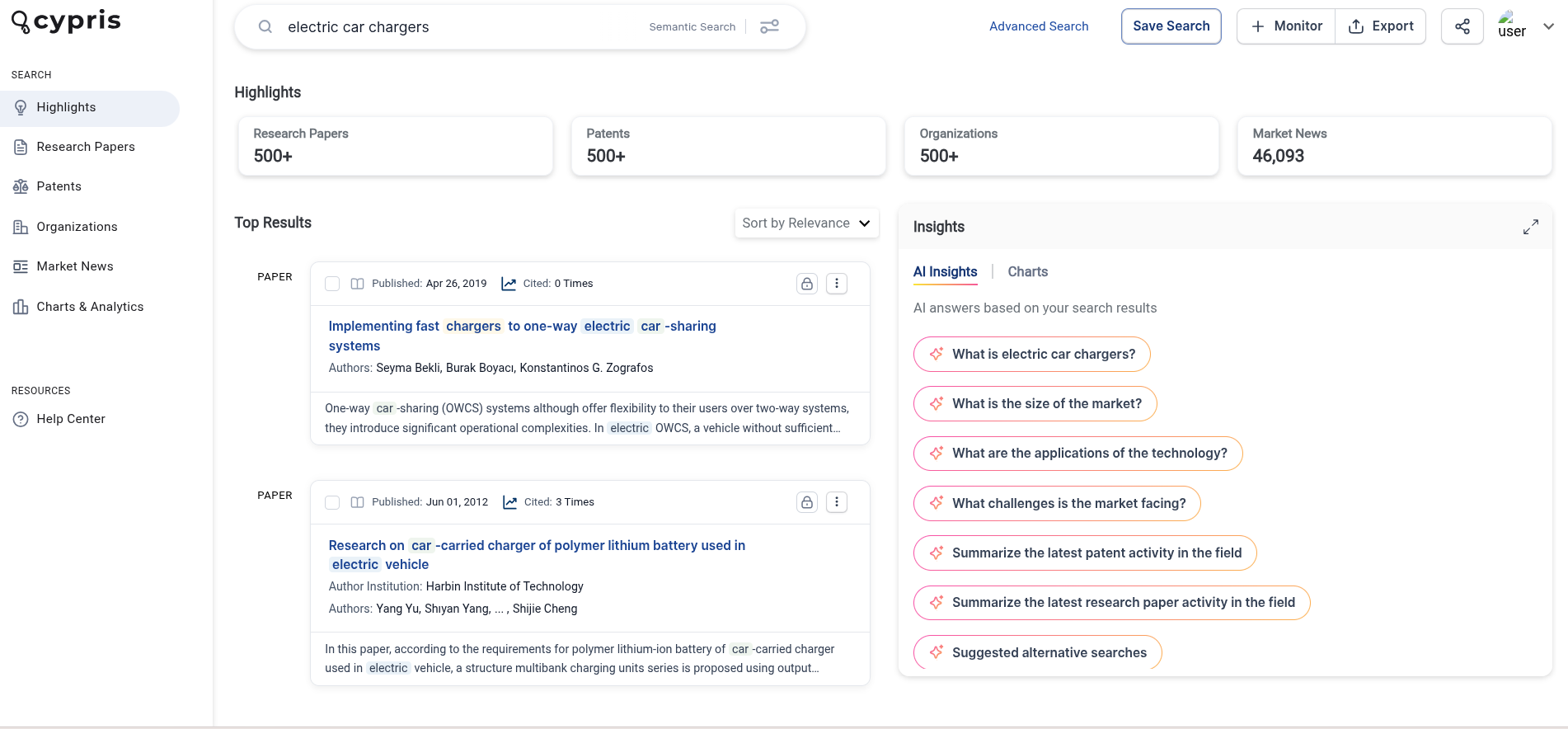
Highlights of the New UI
Single Search Bar
We’ve created a single search bar to allow our users to have an ideal searching experience. From the single search bar, our users will be able to create Boolean, Semantic, & Organization searches.

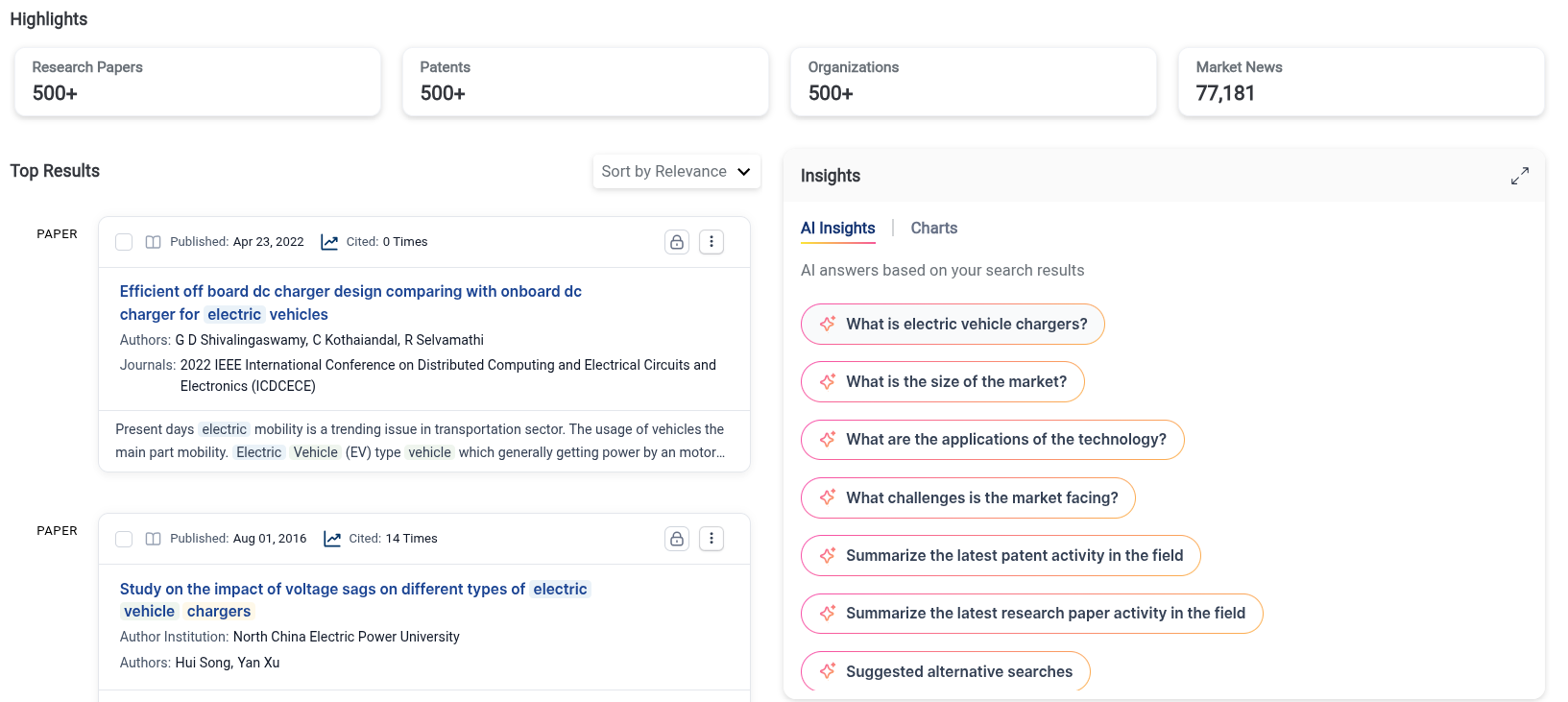
Upgraded Highlights Section
The highlights section will now be centrally located and highlight the amount of Patents, Research Papers, Organizations, & News Articles from the search query. The highlights section will also include the AI Insights for the search query.
How to Use Keyword Monitoring
Keyword monitoring allows users to monitor Patents, Research Papers, Organizations, and Market News of specific keywords.
Before we get into the steps to set up monitoring, let's define a few terms that are important to understand at the start.
- Automated Monitoring: Cypris' method for sending updates on topics of your interest automatically to your email inbox, providing access to the datatypes hosted within the Cypris platform in a highly convenient and accessible way
- Saved Search: This refers to a report or the defining query of a report that you've already built and saved to your Cypris account. These saved searches are represented as reports in the "Reports" section of the Cypris platform landing page.
- Recipients: The people who will receive the automated monitoring deliveries, specified by entering their emails within the set-up process
- Frequency: The cadence which you will receive updates on that monitoring instance.
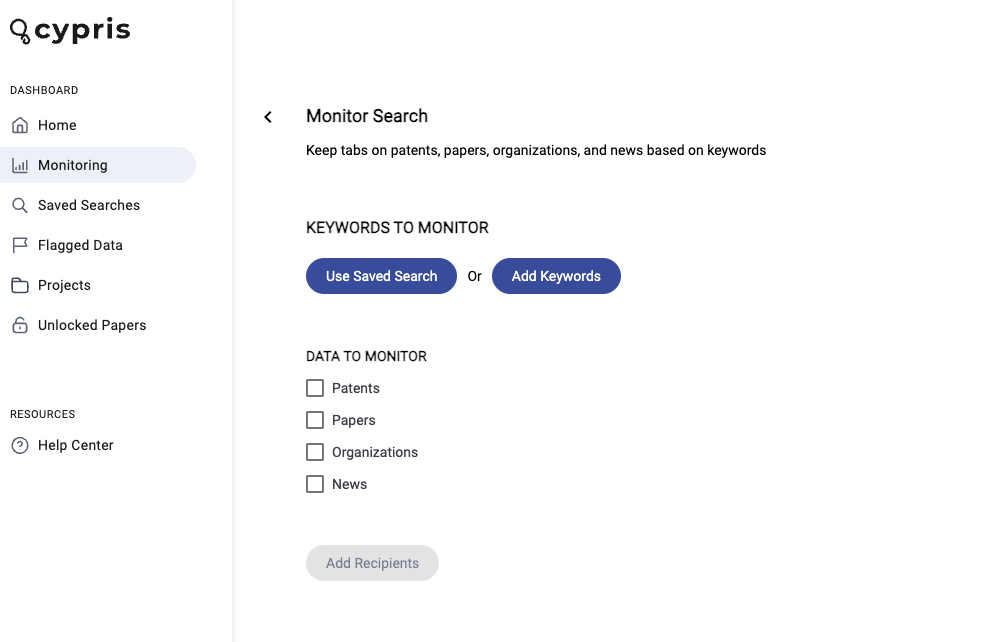
You Can Set Up Keyword Monitoring in Two Ways:
Method A: Use Saved Search
"Used Saved Search" will allow users to use a previously built saved technology report
- Select a Saved Search to use that will define the content included in the monitoring campaign
- Once the report is selected, select the data types you are interested in monitoring. Users can select Patents, Research Papers, Organizations, and/or Market News
- After the data is selected, click Add Recipients
- Once the recipients are added, click Add Frequency
- Select the frequency of your choice and select the day of the week that you would like to receive your monitoring report and subsequent updates
- Finally, select Create Monitoring
Method B: Add Keywords
Add Keywords will allow users to build a query through the Boolean Search Bar or by clicking Advanced
- Select Add Keywords
- Using the text box that appears, build a query through Semantic Search, Boolean Search, or by clicking Advanced (Advanced will take you to the Advanced Search function that you may be familiar with from building a technology report)
- After building the query select Save and Continue
- Once the query is built, select the data types you are interested in monitoring. Users can select Patents, Research Papers, Organizations, and/or Market News
- After the data is selected, click Add Recipients
- Once the recipients are added, click Add Frequency
- Select the frequency of your choice and select the day of the week that you would like to receive your monitoring report and subsequent updates
- Finally, select Create Monitoring
What Comes Next
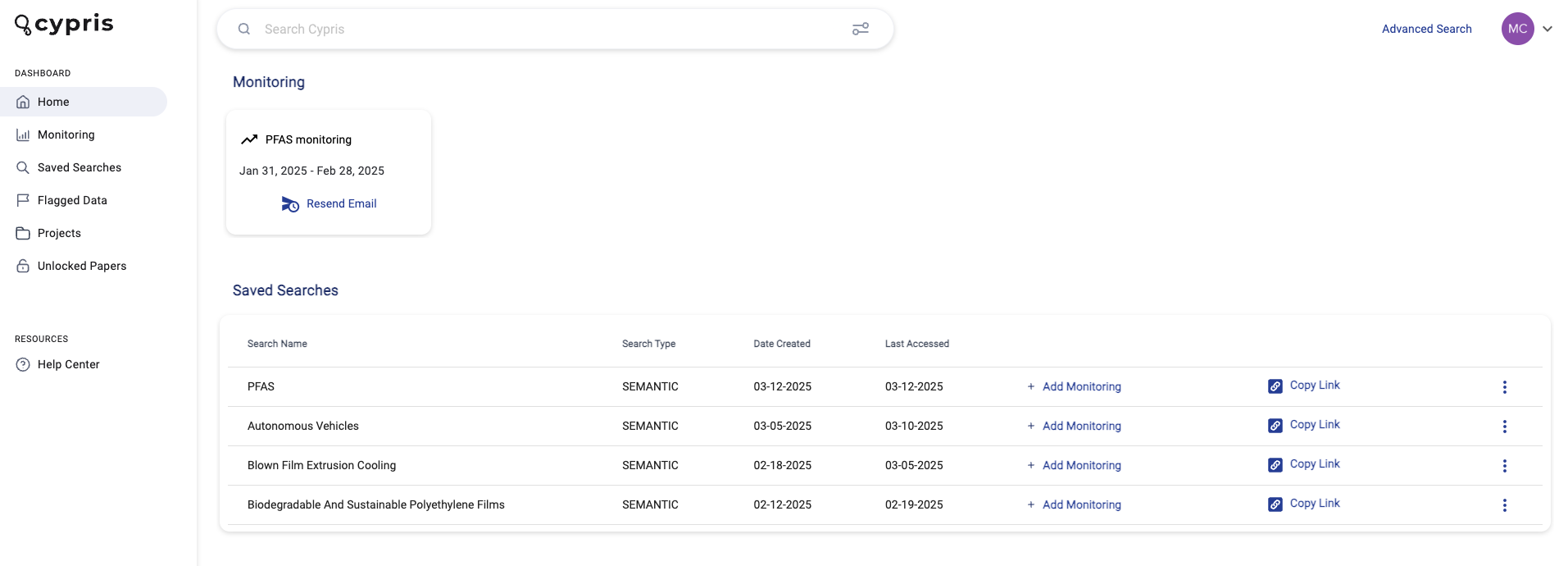
Once you finish setting it up, the monitoring campaign will be displayed as an item on the monitoring dashboard. You will get automated emails with the content matching your monitoring parameters on the cadence you specified in the set up. If there is not content matching your criteria at the time of delivery, you will receive an email stating that finding.
Editing Active Monitoring
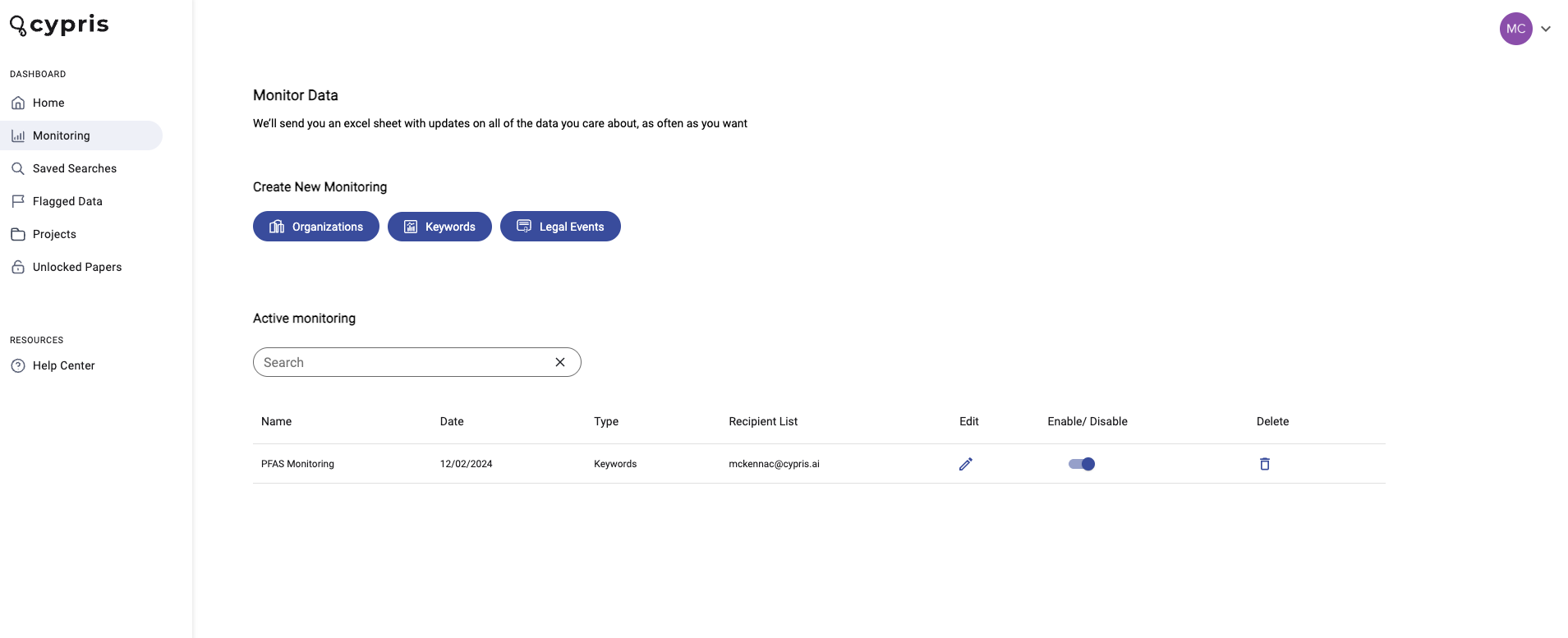
From the monitoring page, you cal also enable/disable monitoring using the toggle, as well as delete or edit current monitoring you have running.
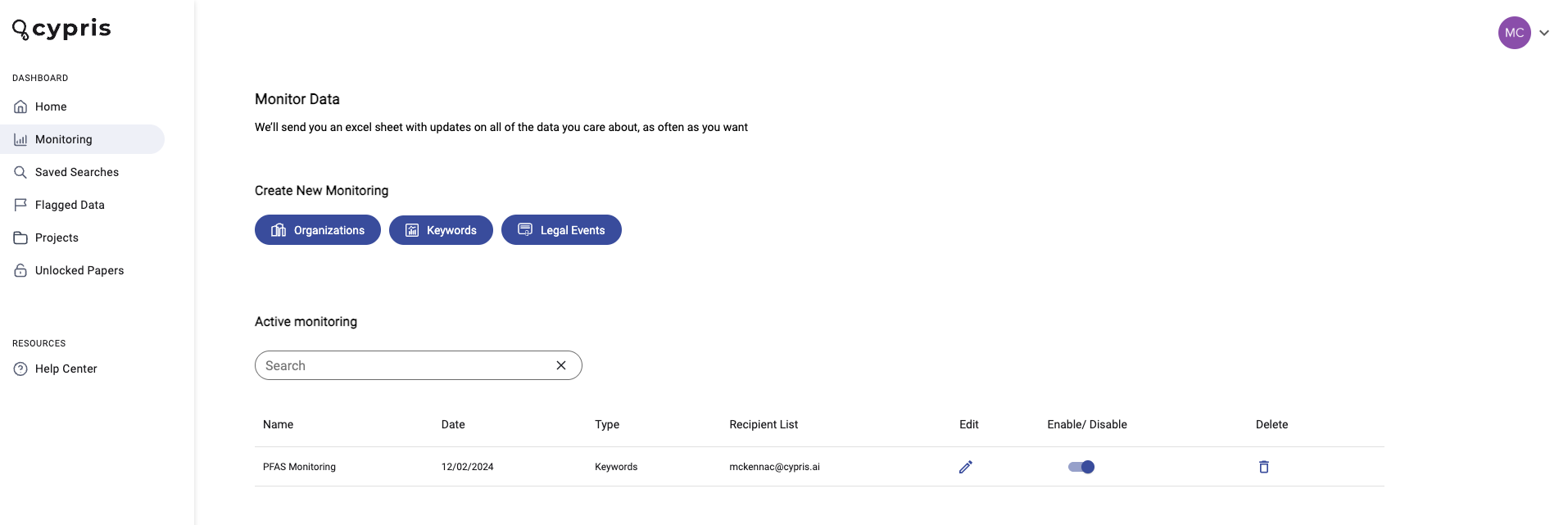
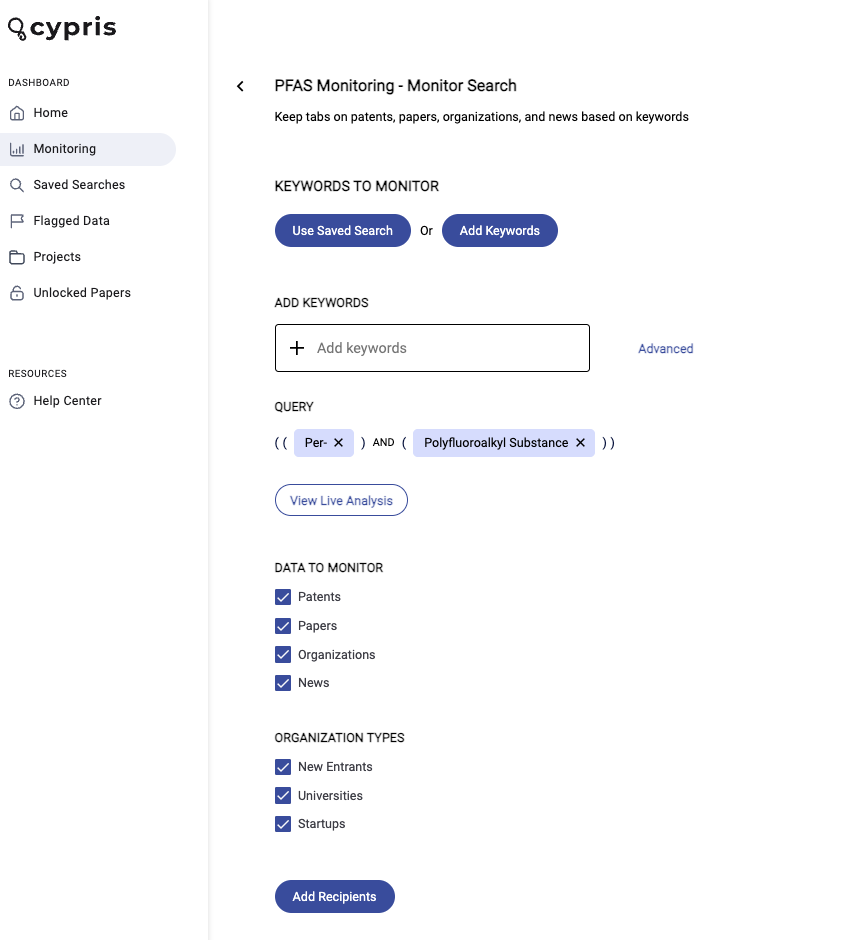
Selecting edit will take you to the following view, where you can quickly make changes.
Cypris Advanced Search supports Lucene query syntax, a powerful standard for creating precise and flexible queries. Below is a guide to help you build more effective searches.
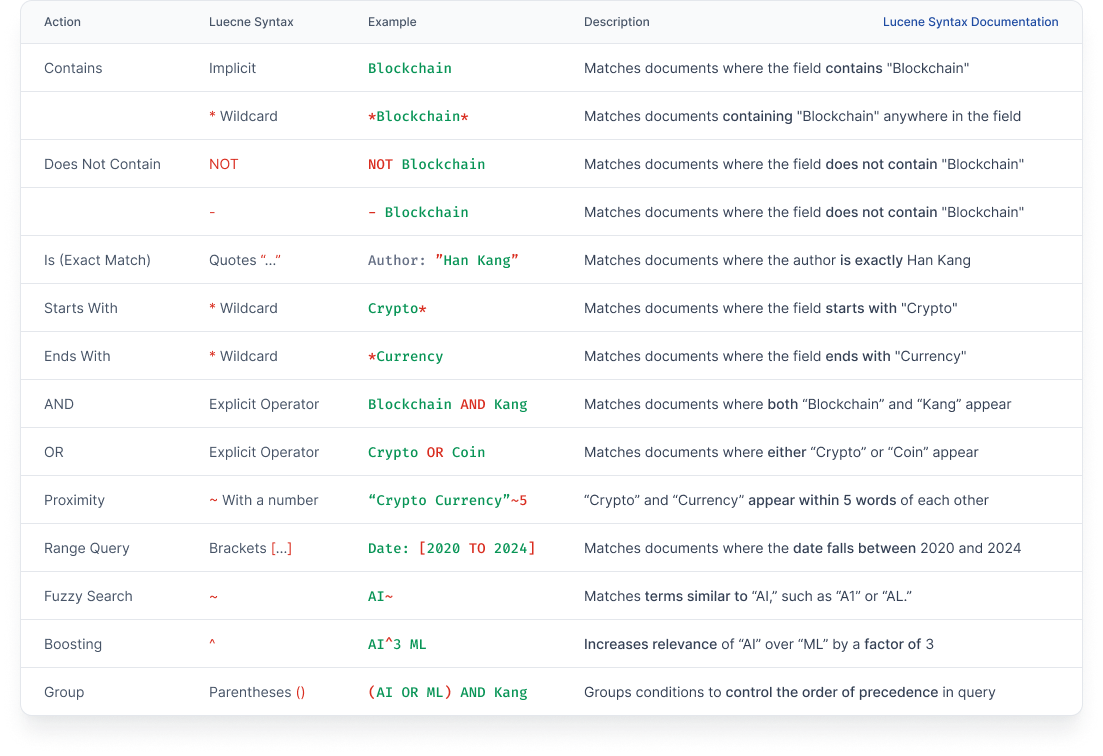
Contains
By default, typing a keyword into the search bar will return results that contain that term anywhere in the relevant field.
Example:
biotech – finds results that mention “biotech” in any position.
Does Not Contain
Use NOT (capitalized) to exclude results that contain a specific term.
Example:
gene NOT therapy – finds results that include “gene” but exclude anything mentioning “therapy”.
Is (Exact Match)
Use double quotes to search for an exact match or phrase.
Example:
"carbon capture" – finds results that include the exact phrase carbon capture, in that order.
Starts With / Ends With
Use the * wildcard to match terms based on how they start or end.
Examples:
- nano* – matches terms that start with “nano” (e.g., nanotech, nanomaterials)
- *delivery – matches terms that end with “delivery” (e.g., last-mile delivery, autonomous delivery)
AND / OR
Use AND, OR, and NOT to combine or exclude terms.
Examples:
- battery AND EV – both terms must be present.
- robotics OR automation – either term can be present.
- AI NOT healthcare – includes results with AI but excludes those that mention healthcare.
Proximity Search
Find words that appear near each other, even if not right next to each other.
Use "word1 word2"~N, where N is the maximum number of words between the terms.
Example:
"robotics delivery"~5 – returns results where robotics and delivery are within five words of each other, in any order. Useful for flexible phrase searches when word order varies.
Range Query
Search for values between two numbers or dates using TO.
- Use [] for inclusive ranges
- Use {} for exclusive ranges
Examples:
- year:[2019 TO 2024] – includes 2019 and 2024
- funding:{50000 TO 100000} – includes values between 50,000 and 100,000, excluding those exact endpoints
- date:[2022-01-01 TO 2023-01-01] – finds items published between January 2022 and January 2023
Fuzzy Search
Fuzzy searches find similar spellings or terms with small differences. Add a tilde ~ at the end of a term to enable fuzzy matching.
Example:
- biotech~ – returns similar terms like biotex, biotechh, or biotek
- You can fine-tune similarity by adding a number between 0 and 1: crispr~0.8 allows fewer differences than crispr~0.5
This is helpful for catching typos or alternate spellings.
Boosting
Increase the relevance of certain terms using the caret symbol ^ and a numeric weight.
Example:
- AI^3 automation – results mentioning AI will be ranked more highly (3x) than those mentioning automation
Grouping
Use parentheses to group terms and control the logic of your search.
Examples:
- (AI OR ML) AND robotics – returns results that mention robotics along with either AI or ML
- (hydrogen NOT storage) AND fuel – filters hydrogen results that do not mention storage, but do mention fuel
Use these search strategies to narrow down results, discover related technologies, and unlock faster insights within Cypris.
A powerful new foundation for custom queries—built on Lucene and designed for R&D precision.
Over the past few years, Cypris has helped innovation teams make faster, more informed decisions by centralizing critical insights across datasets like patents, academic papers, and company activity. But until now, our search experience relied on a legacy query system with limited capabilities, offering little support for advanced search features or dataset-level customization.
Today, we’re excited to introduce an upgraded Advanced Search on Cypris, a complete overhaul of our query engine and search experience, powered by the open-standard Lucene query syntax. This update introduces a more robust and flexible search foundation, unlocking new ways to query data, build complex filters, and extract precisely what you need across patents, research, and more.
Why we rebuilt our search system from the ground up
Cypris’ original query syntax, a proprietary format used internally for years, limited users’ ability to craft advanced queries or tailor searches to specific datasets. It lacked modern capabilities like proximity searches, field-level customization, or true Boolean logic. This made it difficult to build a reliable and intuitive experience for both casual users and advanced researchers.
By moving to Lucene, we’re adopting a powerful, industry-standard query language that makes it easier for developers to build advanced features—and gives users access to a far more capable and flexible search toolset.
Watch the full tutorial
Watch the tutorial below or skip to the sections below to read what's new.
What’s new in Advanced Search
1. Custom Queries by Dataset
You can now layer queries to search across datasets or tailor filters to each one. For example, you can run a broad query on drone delivery, and then add separate layers to focus on patents by a specific assignee and papers from a specific country or funding agency.
Navigating the All Datasets tab introduces a new level of complexity—and power—by allowing users to apply dataset-specific logic within a single, unified query workflow. While querying multiple datasets simultaneously might seem straightforward, the underlying differences in schema, metadata, and available fields between our proprietary datasets make this a deeply technical challenge. Patents, for example, include claims, application numbers, and multiple date fields (filed, granted, updated), while academic papers use DOIs, have different structural conventions, and emphasize different metadata. In the past, we sidestepped this complexity by translating general queries like ((drone_allText)) into dataset-specific logic under the hood. Now, instead of obscuring that logic, we allow users to opt in to it. The builder provides progressive layers of customization: start with intuitive keyword searches across all fields, then move into the advanced builder for field-specific targeting, fuzzy logic, and term boosting, and finally, tailor query logic by dataset—such as specifying different countries of interest for papers vs. patents. This approach preserves flexibility while giving users full control, and with tools like our real-time Live Analysis and “Your Query” panel, we make it easy to understand how every decision affects the results.
Note that all fields includes claims, title, abstract, author/inventor, and organization/assignee/applicant.
2. More Fields to Query
We’re exposing deeper fields across datasets—giving you explicit control over the dimensions of your search. For the first time, users can now search academic papers by DOI, a critical identifier previously unsupported on the platform. You can also query by:
- Author or inventor names
- Organizations or assignees
- Countries, journals, funding agencies, and more
3. Full Boolean Support
Advanced Search now leverages powerful Boolean logic—AND, OR, NOT, and grouping—enabling more precise control over search logic and improving performance and accuracy.
4. Lucene Syntax Features
Use built-in Lucene features to create expressive, complex searches:
- Proximity searches to find terms near each other
- Fuzzy searches for flexible matching
- Exact phrase matching
- Boosting to prioritize results (e.g., prioritize results mentioning AI 3x more than others)
- Prefix/Postfix queries to match phrases that start or end a certain way
- Range queries for fields like date, funding amounts, or numerical values
For a guide to Lucene Syntax, view this article here.
A more powerful user experience
Our new search interface is built to help you tap into these capabilities without needing to know the syntax from the start. You’ll find:
- A Query Builder to guide you through complex searches
- A Help Video to onboard users to Lucene-style searches
- Inline examples and tips for writing queries using grouping, boosting, and more
Built for precision, speed, and customization
With Lucene as our foundation, search results are now not only more flexible but also faster and more accurate. Semantic search continues to offer natural-language ease of use, while Boolean search gives power users the performance and structure they need to uncover insights with greater specificity.
Whether you’re an innovation analyst drilling into AI patents or a business development lead scanning academic papers from Chilean researchers—Advanced Search is built to help you get to the signal, faster.
Available now to all users
Advanced Search is live and available across the Cypris platform today. If you’re already using Cypris, you’ll find the new search interface in your dashboard, complete with updated syntax documentation and walkthroughs.
We’re excited to see what you’ll build, discover, and analyze with this new capability. This is just the beginning—we’ll continue expanding the fields, syntax features, and customization options as we push the boundaries of what intelligent search can do for R&D.

We’ve rebuilt the Cypris search experience from the ground up—introducing Advanced Search, powered by Lucene. This upgrade gives you full control over how you search patents, academic papers, and company activity. With support for Boolean logic, proximity queries, fuzzy matching, and field-level filtering, Advanced Search enables both simple and highly customized queries tailored to each dataset. Whether you're scanning for keywords or constructing complex filters, this new foundation is built for speed, precision, and flexibility.
Watch the video below to learn how to use the new interface, explore example queries, and make the most of this powerful search upgrade.
To read about the new changes, view this article here.
For a guide to Lucene Syntax, view this article here.
.avif)