
How we can help?
Popular Articles
Product update
Today we’re launching chemical structure drawing in Cypris Q, giving users a new way to start research from the structure itself, not just from text.
Until now, chemical prompts in Q began with written descriptions, compound names, CAS numbers, or other identifiers. Now, users can draw a compound or reaction directly in the editor, and Q will read the structure, include it in the prompt context, and analyze it through the Cypris Intelligence Layer.
This is an important step forward for chemical, IP, and R&D teams. It brings structure-first reasoning into the same environment where teams already search across patents, papers, regulatory sources, commercial data, and compound intelligence.
Draw compounds and reactions directly in Q
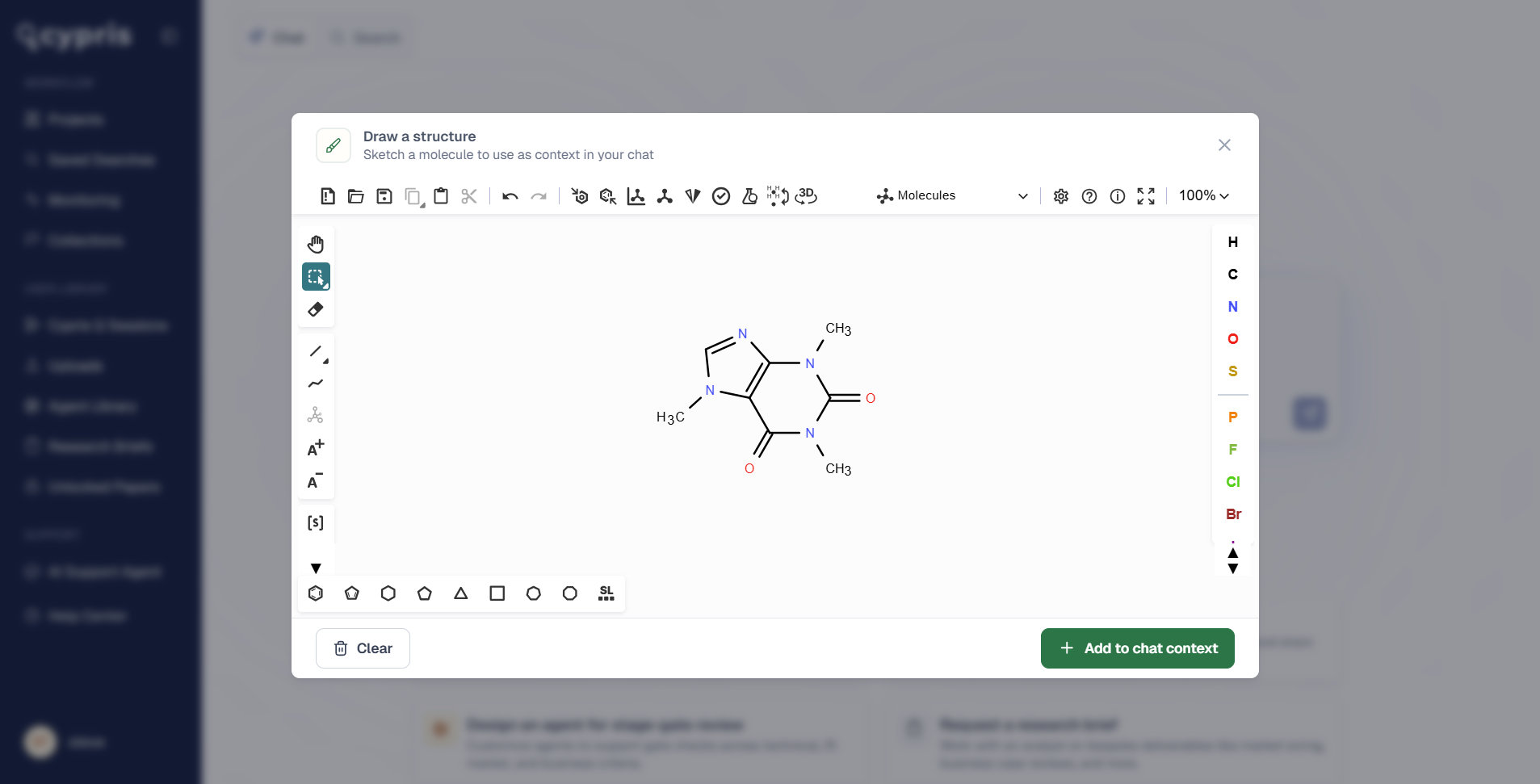
Users can now open the structure editor from the toolbox in Cypris Q and sketch a molecule or reaction on the canvas.
The editor supports atom and bond tools, common ring systems and functional groups, stereochemistry, R-group and S-group handling, and structure clean-up. Users can paste an existing structure or start from scratch, making it easier to move from an idea, molecule, or reaction scheme into a research workflow.
Add multiple structures to a single prompt
Q also supports multiple structures in the same prompt.
This is useful when comparing compounds, evaluating related molecules, working across a reaction, or asking Q to reason over a broader chemical set. Instead of describing each structure in text, users can provide the structures directly and ask Q to analyze them in context.
Verify structures with SMILES and InChIKey
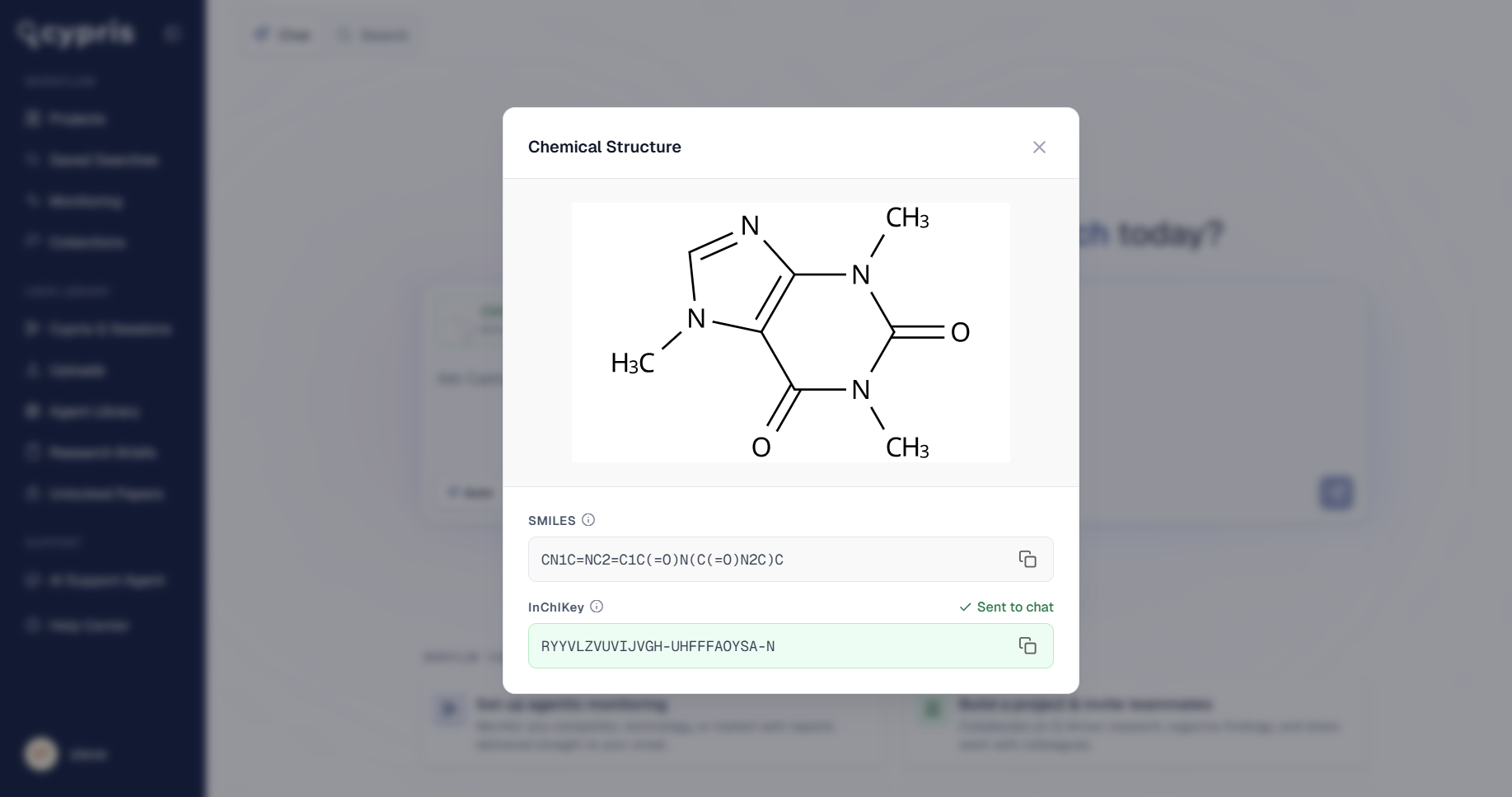
Each drawing is converted into SMILES and InChIKey representations, both visible and copyable in Q.
This gives users a clear way to verify what Q read from the drawing and carry those identifiers into other workflows, databases, or internal systems. It also helps ensure that the structure being analyzed is the one the user intended.
Mapped through the Cypris Intelligence Layer
Once a structure is added to a prompt, Cypris runs it through the Cypris Intelligence Layer.
That means Q can connect the drawn structure to chemical synonym resolution, related compounds, regulatory sources, patents, papers, and commercial intelligence. Rather than treating the drawing as an isolated image, Q understands it as structured chemical context that can be used for deeper research and analysis.
This opens up a new class of workflow for chemical research inside Cypris. Users can now ask questions from the structure outward, using Q to reason across the global landscape surrounding a compound, molecule family, or reaction.
Available now
Chemical structure drawing is available now to all Cypris customers.
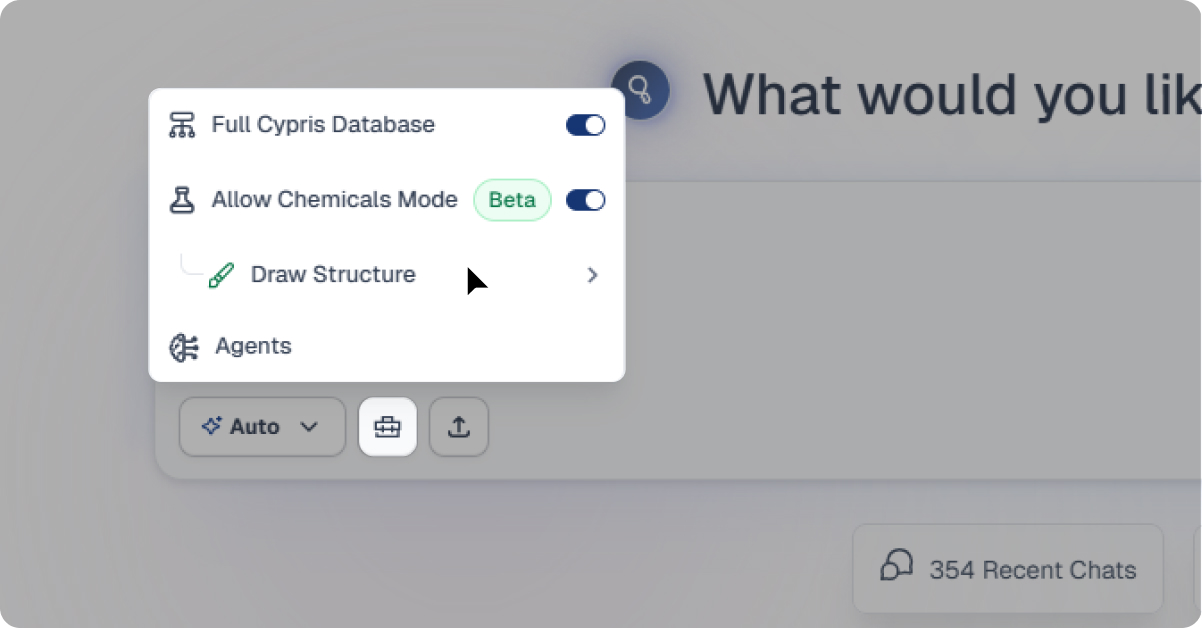
To access it, open Cypris Q, click into the toolbox in the chat window, and select Draw Structure.
The Main Features of Monitoring
- Regular updates delivered directly to your email inbox in easy-to-use Excel format
- Stay current on important industry activity by defining your schedule for receiving monitoring reports from Cypris
- Automatically send monitoring reports to a custom audience of your choosing within your organization
Where to Find Monitoring
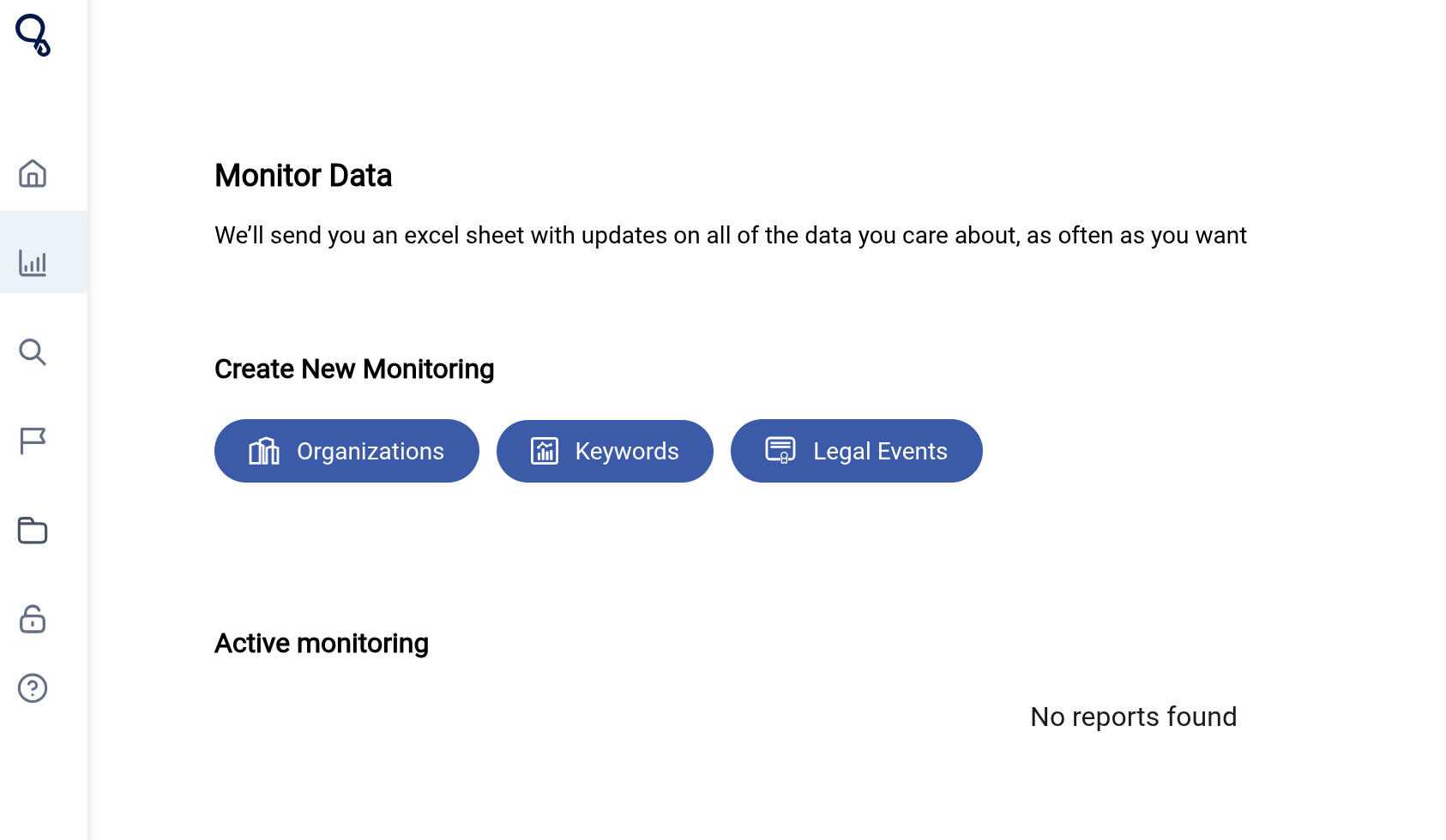
You can access monitoring from the home screen of your dashboard by selecting the "Monitoring" tab on the left hand panel. Alternatively, you can perform a search and add monitoring to your search using the button on the top right of your screen.
Types of Monitoring
There are 3 types of monitoring within the dashboard: Organizations, Keywords, and Legal Events. Continue reading below for a general overview of these sections or skip to the unique article for your desired monitoring type.
- Keyword Monitoring - User Guide
- Organization Monitoring - User Guide
- Legal Events Monitoring - User Guide
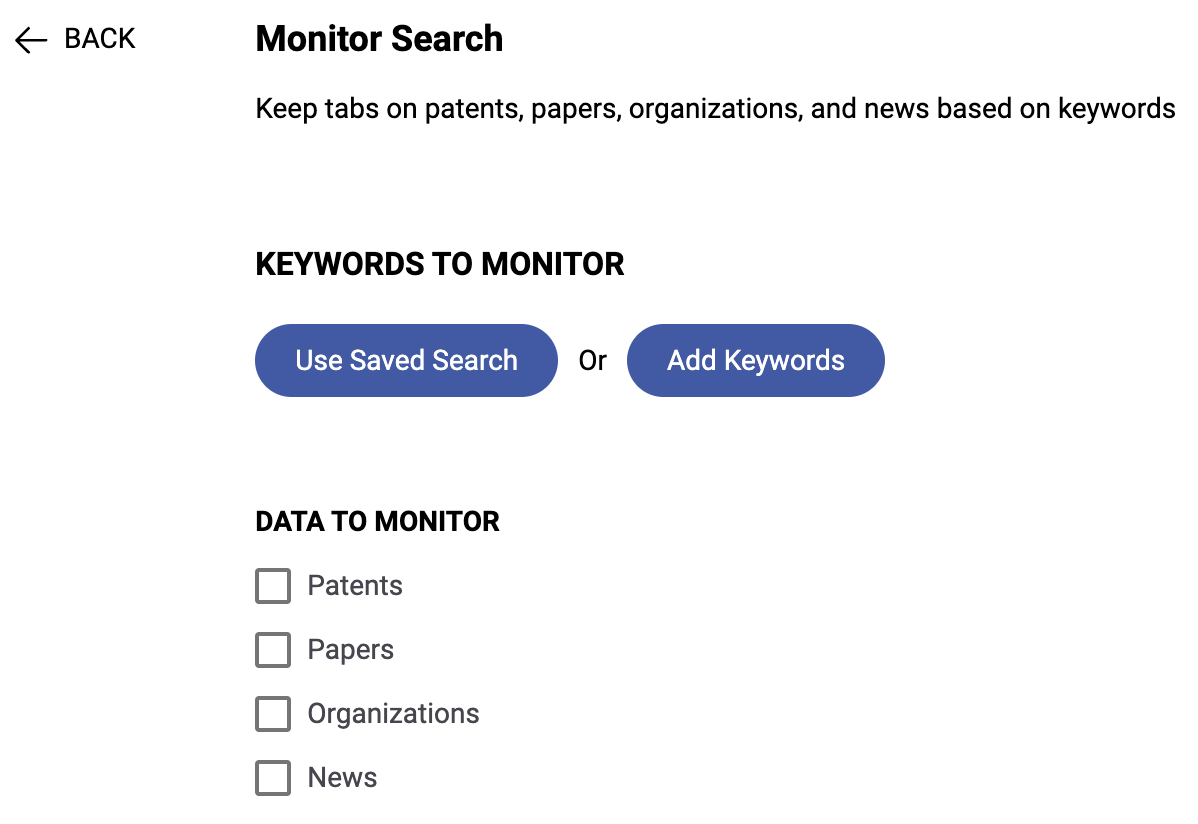
Keyword Monitoring:
- Track activity surrounding a specific topic by using queries from previous searches or create new ones to stay up to date on the latest data
- Receive updates on any combination of patents, papers, news, and organizations since your last monitoring delivery
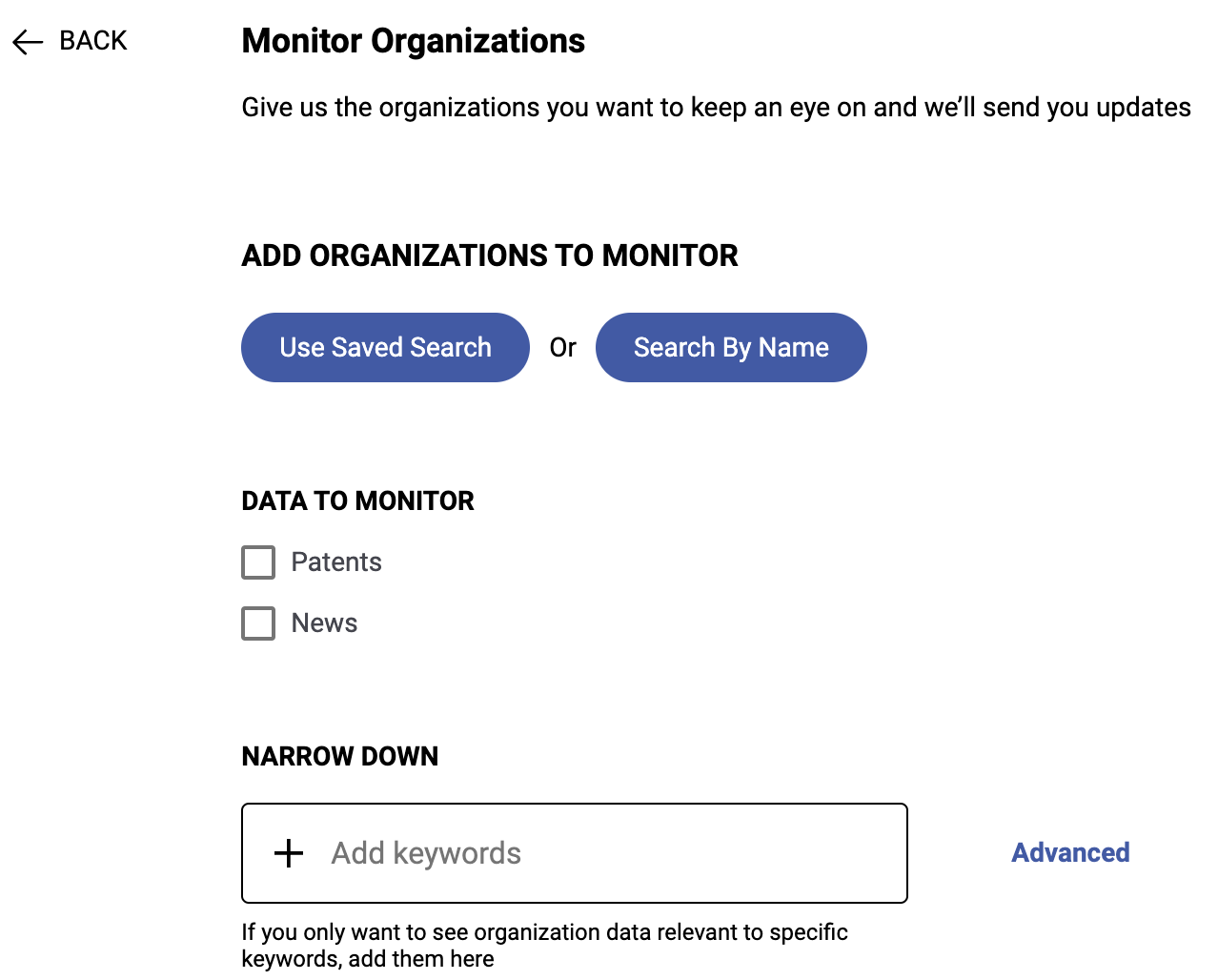
Organization Monitoring:
- Track organizations using pre-saved Company Reports or add companies of interest using our Company Search interface
- Get updates on patents and news content related to these organizations on a frequency of your choosing
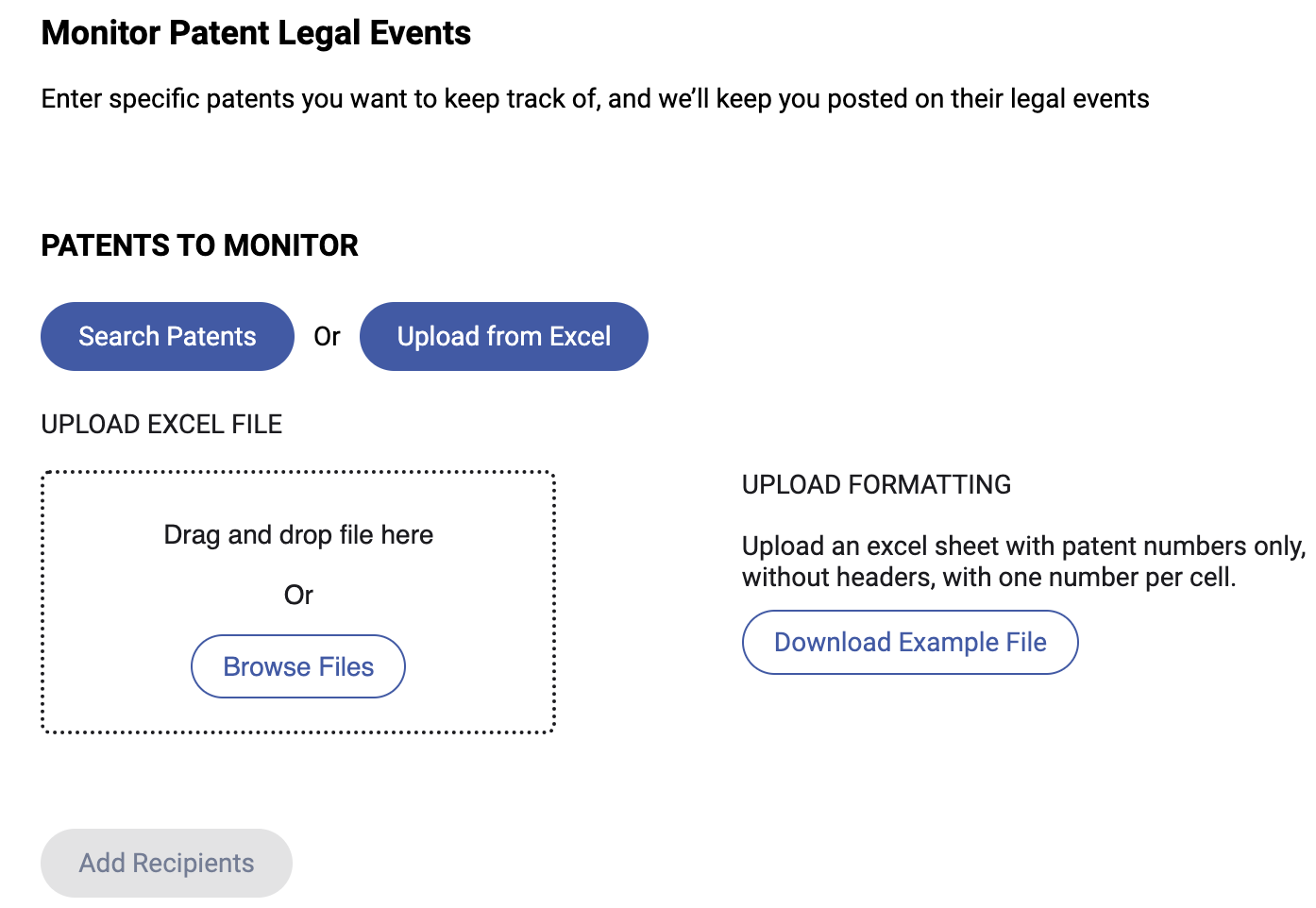
Legal Events Monitoring:
- Add patents by publication number from an Excel or CSV document or through our patent search directly in the monitoring set-up
- Receive the latest legal events for US and Global patents at the time of delivery
As always, your feedback is crucial to our ongoing improvement efforts. Please don't hesitate to reach out with any comments, questions, or suggestions. Thank you for being a valued member of the Cypris community!
New to Cypris or need a refresher? This step-by-step walkthrough will guide you through the Cypris dashboard, showing you how to navigate the platform, run searches, explore insights, and make the most of our AI-powered research tools. Whether you're tracking IP trends, reviewing technical literature, or identifying market opportunities, this tutorial will help you get up to speed quickly.
We’re excited to announce that our closed-access paper unlocking feature is now available to all Cypris users. With this release, you can seamlessly purchase and unlock paywalled research papers using pre-loaded credits—right from your Cypris dashboard. No more navigating external publisher sites or managing scattered PDFs across systems.
This article also includes details on how to integrate your organization's existing journal subscriptions into Cypris for a fully consolidated research experience.
Why We Built This Feature
Many teams don’t have access to every major publisher and rely on one-off paper purchases. Without a corporate card, the process often involves frustrating approvals or personal reimbursements. And once purchased, papers often get buried in email threads or lost in shared drives.
With Cypris Credits, you can now unlock and store research in one centralized place—without ever leaving the platform. The paper is purchased in your name using your Cypris credit balance and appears in your personal library within minutes.
What You Can Expect
✅ Seamless Purchasing – Buy closed-access papers without leaving Cypris
💳 Credit Balance Management – Easily view and replenish your balance
⚡ Fast Access – Papers typically appear in your dashboard within 15 minutes
How It Works
1. Look for the lock icon on any closed-access paper
2. Click to view price and complete the purchase using your credits
3. Track your order – papers unlock within 15 minutes
4. Access anytime in your “Unlocked Research Papers” tab
You can also revisit the paper detail page to confirm access via the green unlock badge.
Need Credits?
If you'd like to add credits to your account, please reach out to customersuccess@cypris.ai and our team will assist you.
Sharing Papers Across Your Organization & Copyright Restrictions
If your organization carries an Annual Copyright License (ACL) through the Copyright Clearance Center (CCC), any papers unlocked through Cypris can be distributed internally in full compliance with the rights granted by that agreement. If you don’t have an ACL, your purchased papers are governed by individual-use copyright and may only be accessed by the individual who unlocked them.
If your organization does not currently hold an ACL but is interested in enabling compliant internal sharing, let us know—we’d be happy to connect you with a representative from the CCC team to learn more about licensing options.
Integrate Your Journal Subscriptions
If your organization already subscribes to specific journals, we can integrate those subscriptions directly into Cypris to create a unified, one-stop research experience. This allows your team to access both unlocked and subscribed content from a single platform.
To explore integration options, reach out to our team at customersuccess@cypris.ai. Implementation typically takes 2–3 weeks depending on your journal providers and access method.
Thank you for being a part of Cypris. We’re thrilled to bring this feature to your fingertips and look forward to your feedback. To connect with our customer success team, please use the link below:
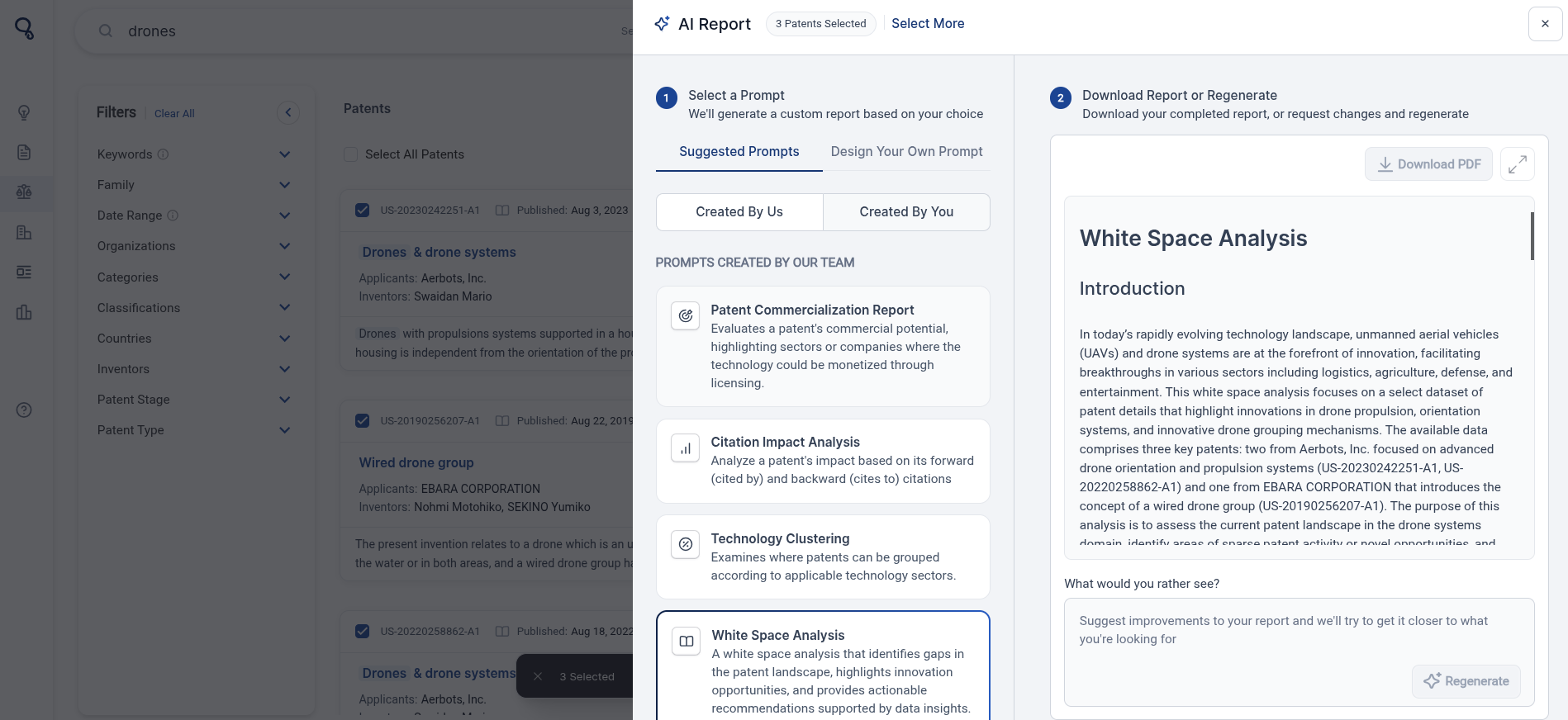
The AI Report Builder for Patents simplifies patent research by generating structured reports based on predefined or custom prompts. Users can create reports for common analyses like Commercialization Reports, Citation Impact Analyses, and White Space Analyses, or define their own objectives by selecting specific data points.
To use AI Reports, start with any type of search (semantic, Boolean, or organization-based). Select a single patent or multiple patents, then choose a suggested prompt or create a custom one. The AI processes the selected data and generates a report, which can be refined using the ‘Regenerate’ option or downloaded as a PDF.
This feature is powered by retrieval-augmented generation (RAG), ensuring that reports are based on relevant, structured patent data. Watch the video below for a step-by-step guide.
How to Conduct an Organization Search
When typing your keywords into the search bar, you’re able to search by organization.
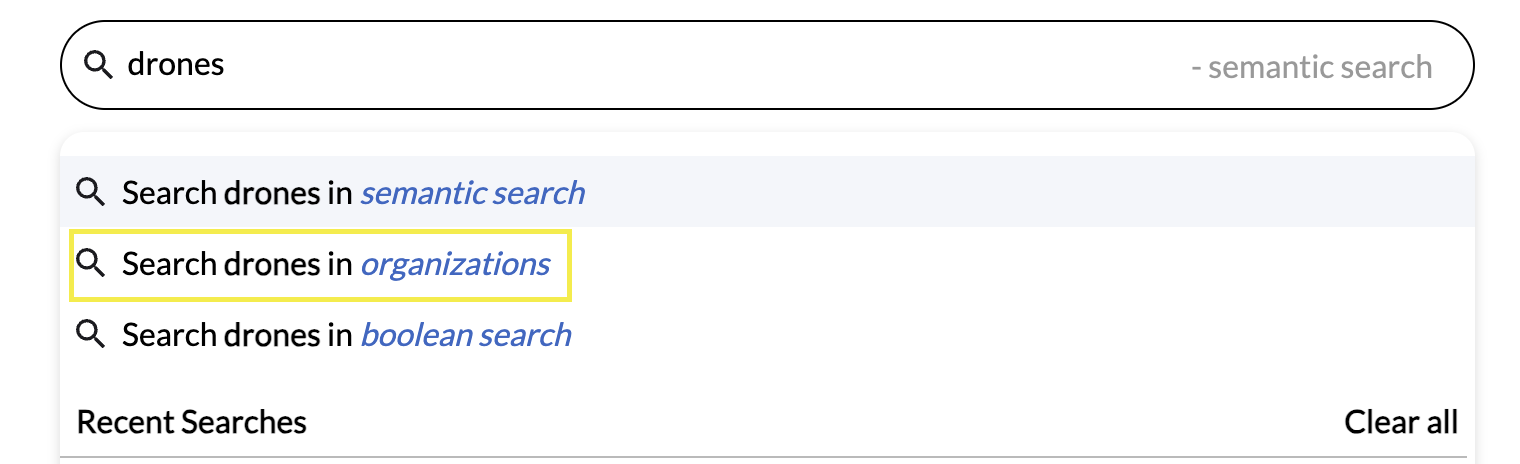
Alternatively, you can click “Organizations” located on the left-hand sidebar underneath the patents tab.
Important to note that you can search for organizations relevant to your IP term, or search for a specific company name.
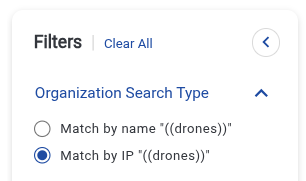
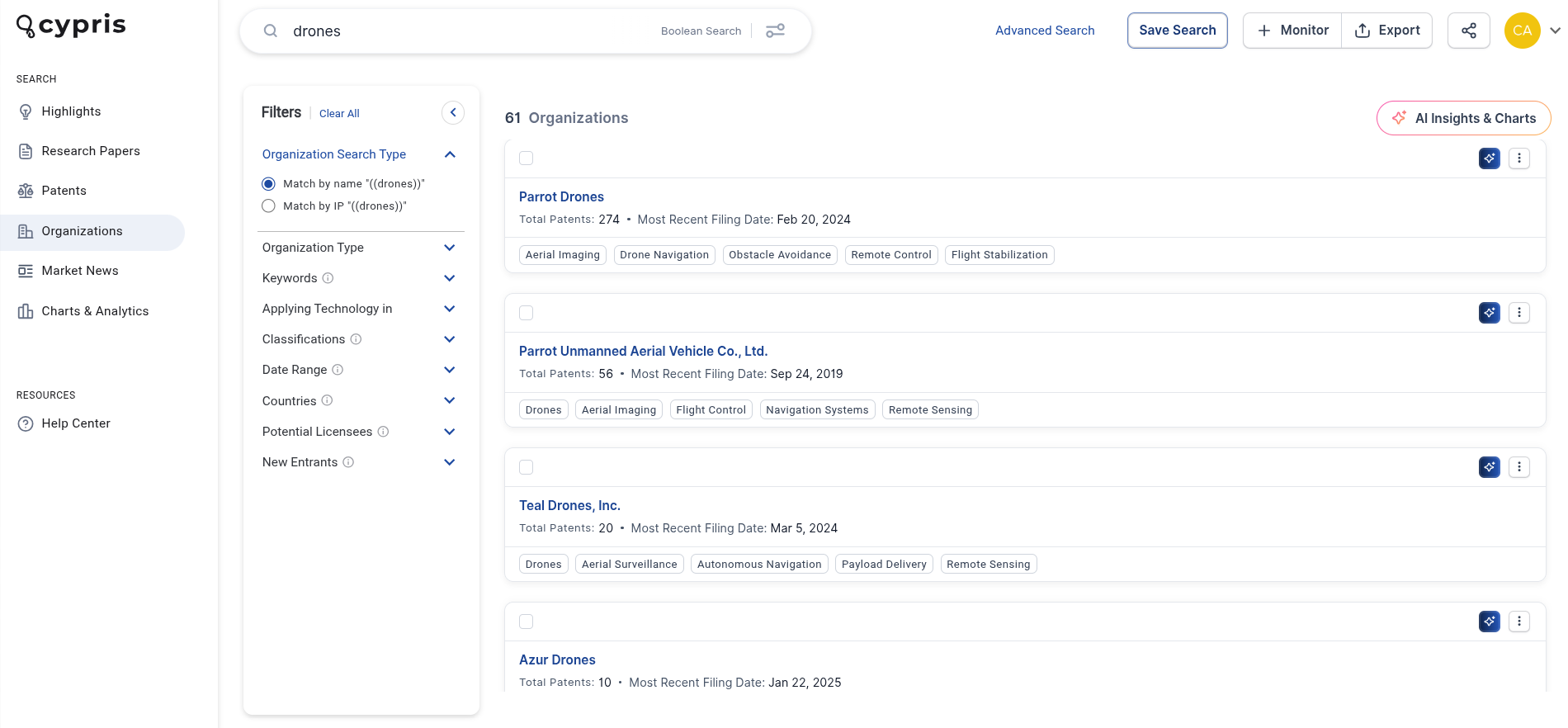
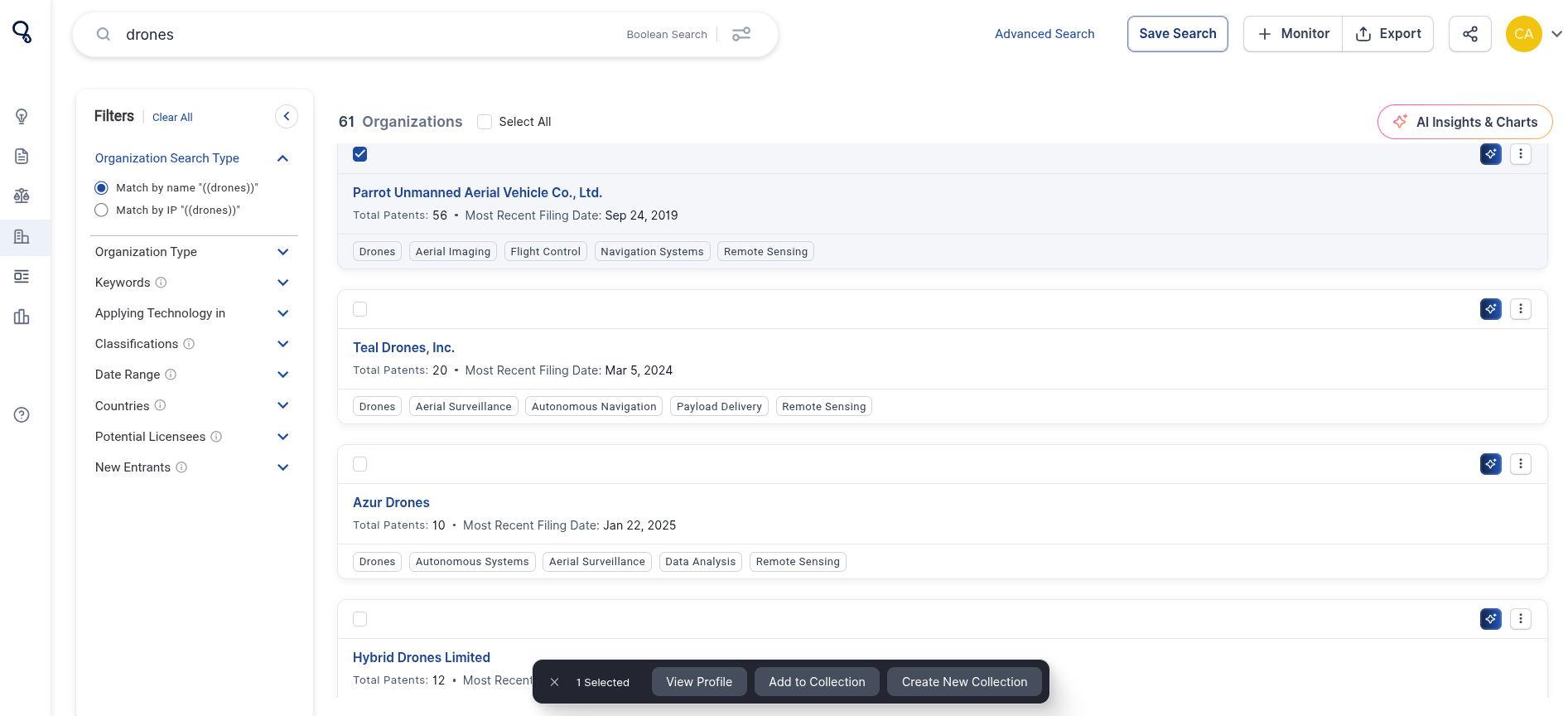
On the left-hand side, you can apply filters to narrow your search criteria. This includes Organization Search Type, Organization Type, Keywords, Applying Technology in, Classifications, Data Range, Countries, Potential Licensees, and New Entrants. Click on the top right to look at AI Insights & Charts relative to the search.
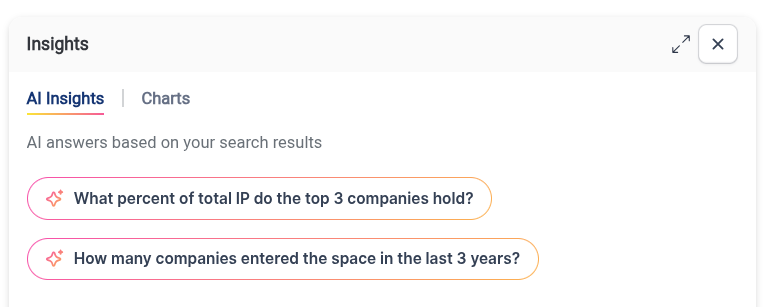
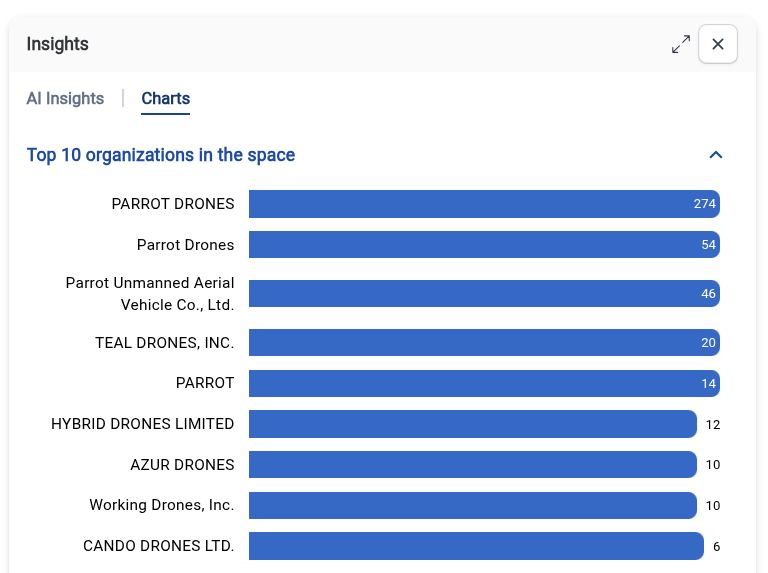
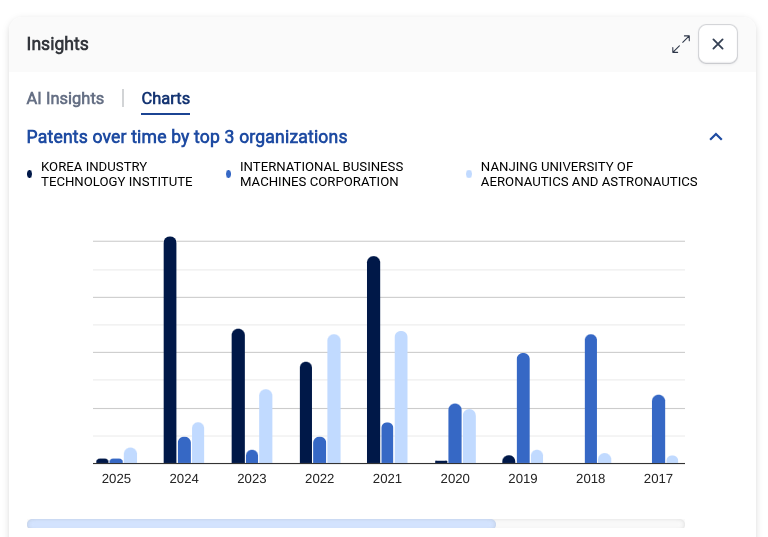
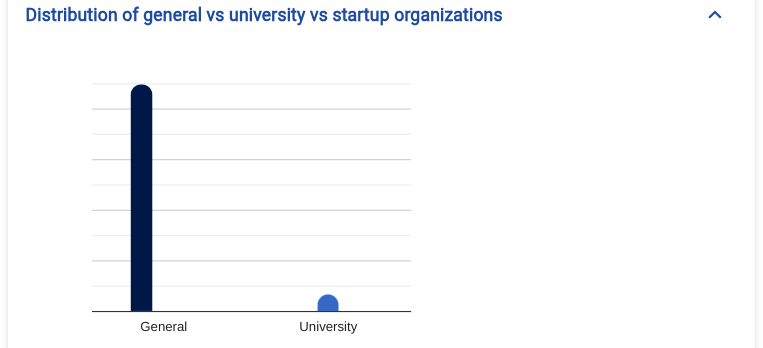
To view more information on a specific organization in the space, click the empty box above the entity's name. From there, select “View Profile” at the bottom.
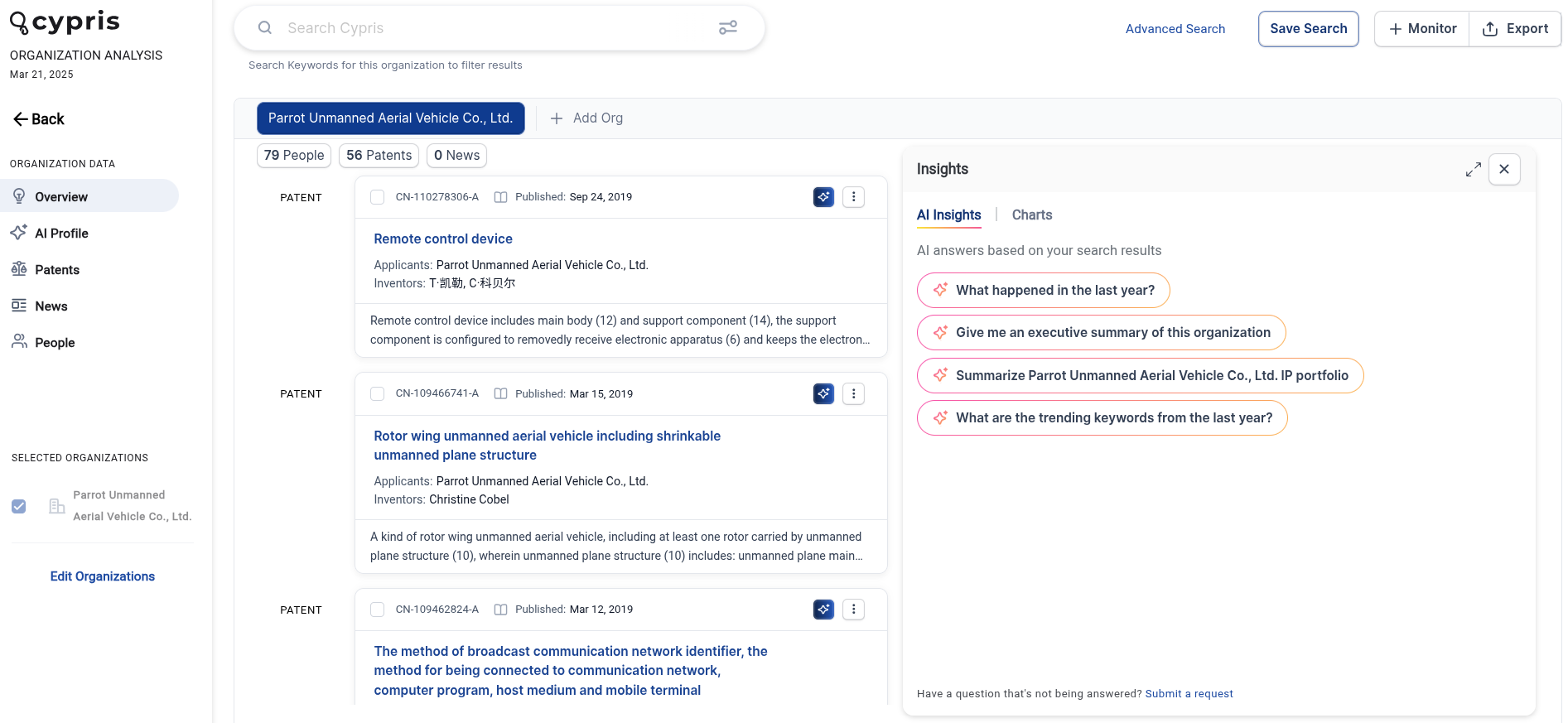
Once you’ve opened the Organization’s Profile, you can look at specific Patents, News, and People within the organization on the left-hand side. You can utilize the AI Insights & Charts on the right-hand side for quick answers on the organization’s activities.
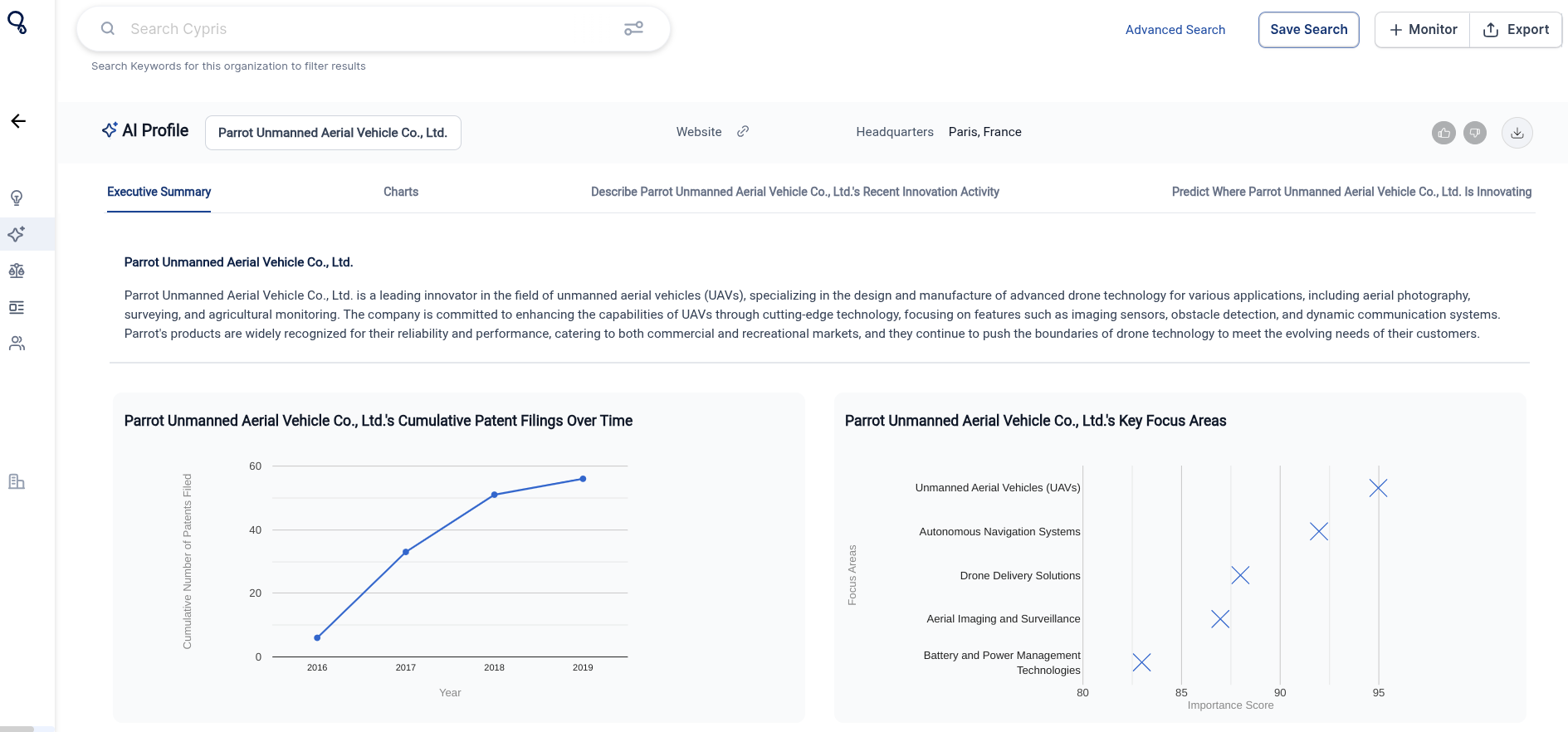
You can also explore the organization's AI Profile on the left-hand side. This will provide you with an Executive Summary, Charts, Recent Innovation Activity and Future Innovation Predictions.
How to Explore Patents
Click on “Patents” on the sidebar to view all patents relating to your search.
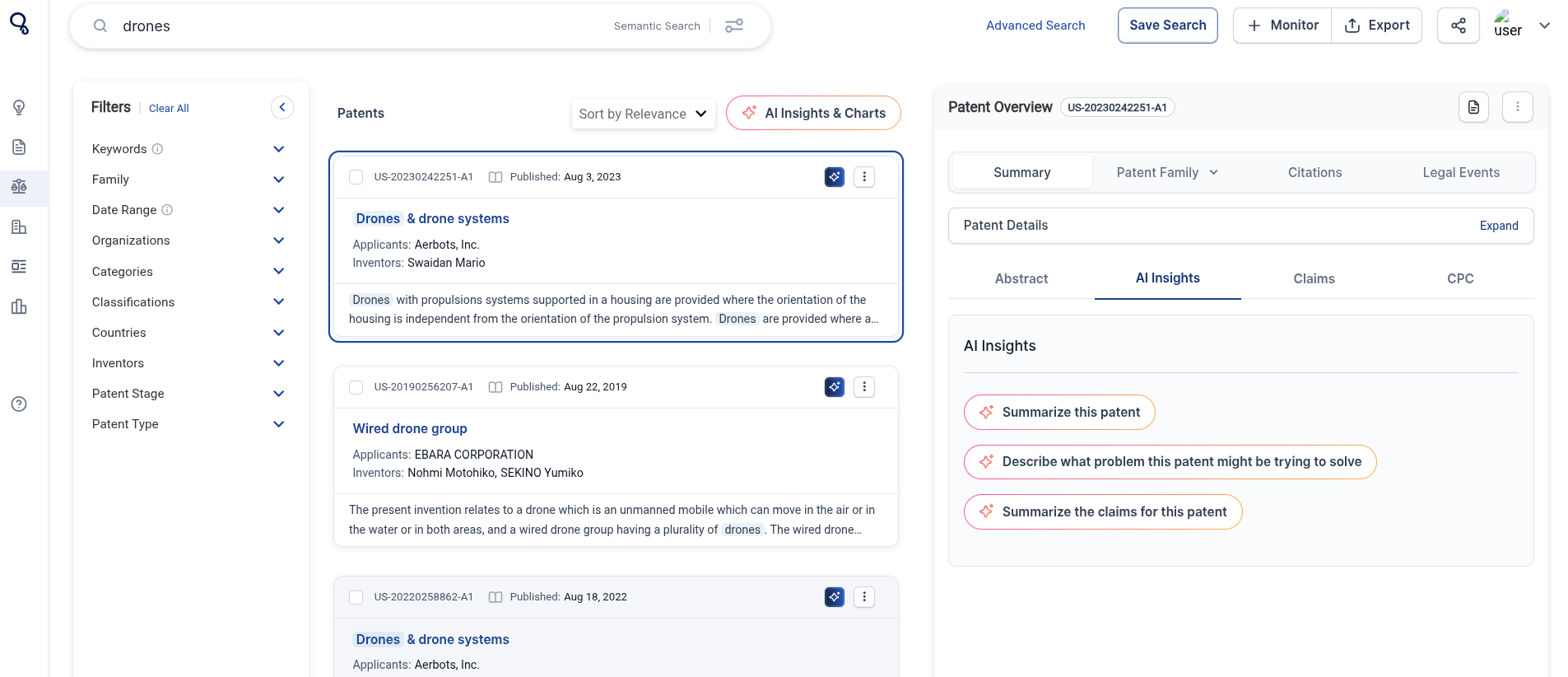
On the left sidebar, you can filter the search results by Keywords, Family, Date Range, Organizations, Categories, Classifications, Countries, Inventors, Patent Stage and Patent Type. You can sort by Relevance and Date by clicking “Sort by Relevance”.
You can view AI insights for each patent by clicking on the patent and then on “AI Insights” located on the right.
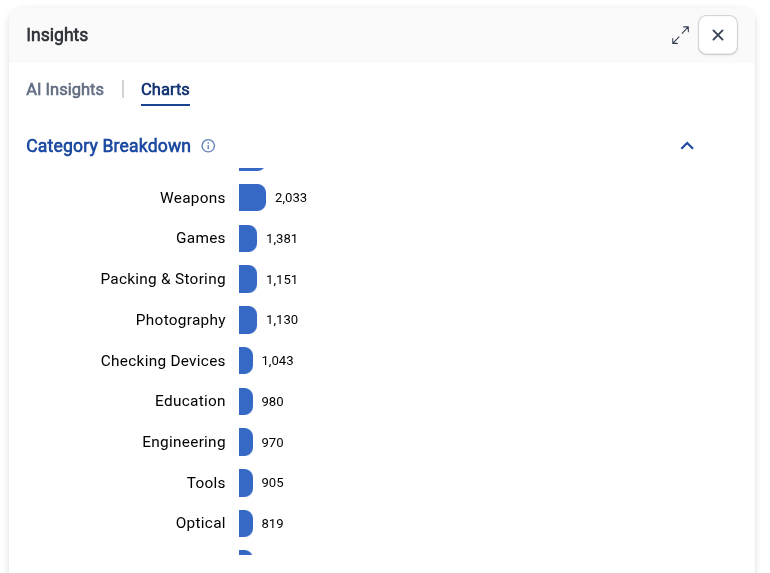
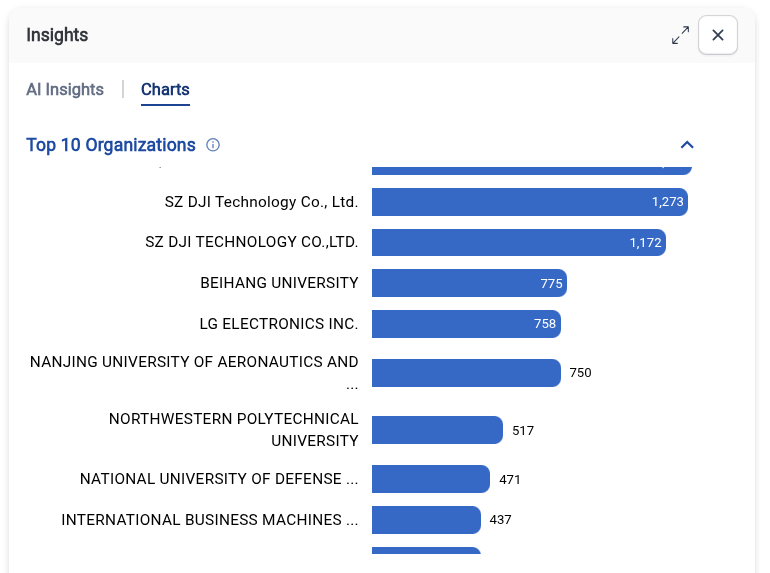
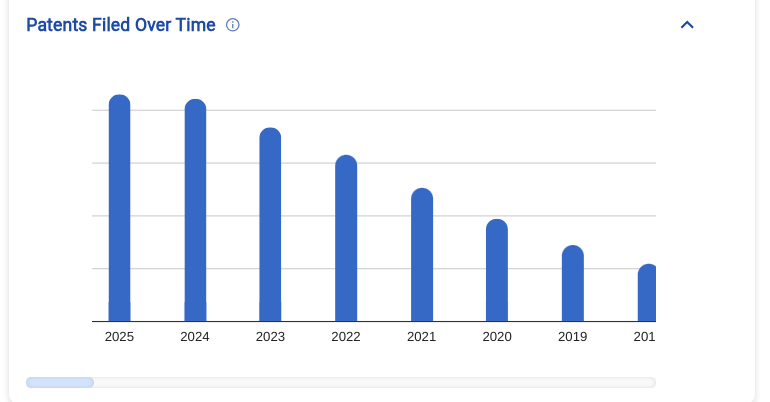
By selecting “Charts” you can see a patent Category Breakdown, Top 10 Organizations and Patents Filed Over Time.
Building AI Reports for Patents
You can also build an AI Report on selected patents. Once the relevant patents are selected, click the 'Build AI Report' button at the bottom of the page and use either our pre-loaded prompts, or create your own, to build a customizable AI Report which can be downloaded to pdf.
For a guide to building AI Reports for Patents, view this article here.
Semantic search goes beyond matching exact keywords—it helps you find results based on meaning and context, not just specific words. With semantic search, you can ask questions naturally and Cypris will surface the most relevant patents, papers, and insights, even if they use different wording.
What Is Semantic Search?
Traditional keyword search looks for exact matches. Semantic search understands the intent and context of your query. This means you can:
- Search using questions, full sentences, or natural language.
- Discover related results, even if they use different terminology.
- Uncover hidden insights that might be missed with keyword search alone.
Examples:
Natural language:
“What are the latest innovations in battery recycling?”
Cypris will show research and patents relevant to that topic—even if they don’t use those exact words.
Broader coverage:
Searching for “biodegradable plastics” may also find results mentioning “compostable polymers,” “eco-friendly packaging,” or “sustainable materials.”
When to Use Semantic Search
- When you want to cast a wide net and discover related concepts.
- When you’re unsure of the exact terminology used in the field.
- When your search is complex or exploratory.
Tips for Getting the Best Results
- Use clear, specific questions or descriptions:
The more context you provide, the better the results. - Try both semantic and keyword search:
For highly technical or niche topics, consider running both search types to ensure comprehensive coverage. - Refine your query:
If results are too broad or off-topic, add more details to your query.
Want More Advanced Search?
For even more control and customization, use the Cypris Query Builder—located at the far right side of the search bar. The Query Builder lets you combine filters, Boolean logic, and advanced options in a user-friendly interface.
Learn more about using the Query Builder here: https://www.cypris.ai/help-center/articles/introducing-advanced-search-on-cypris
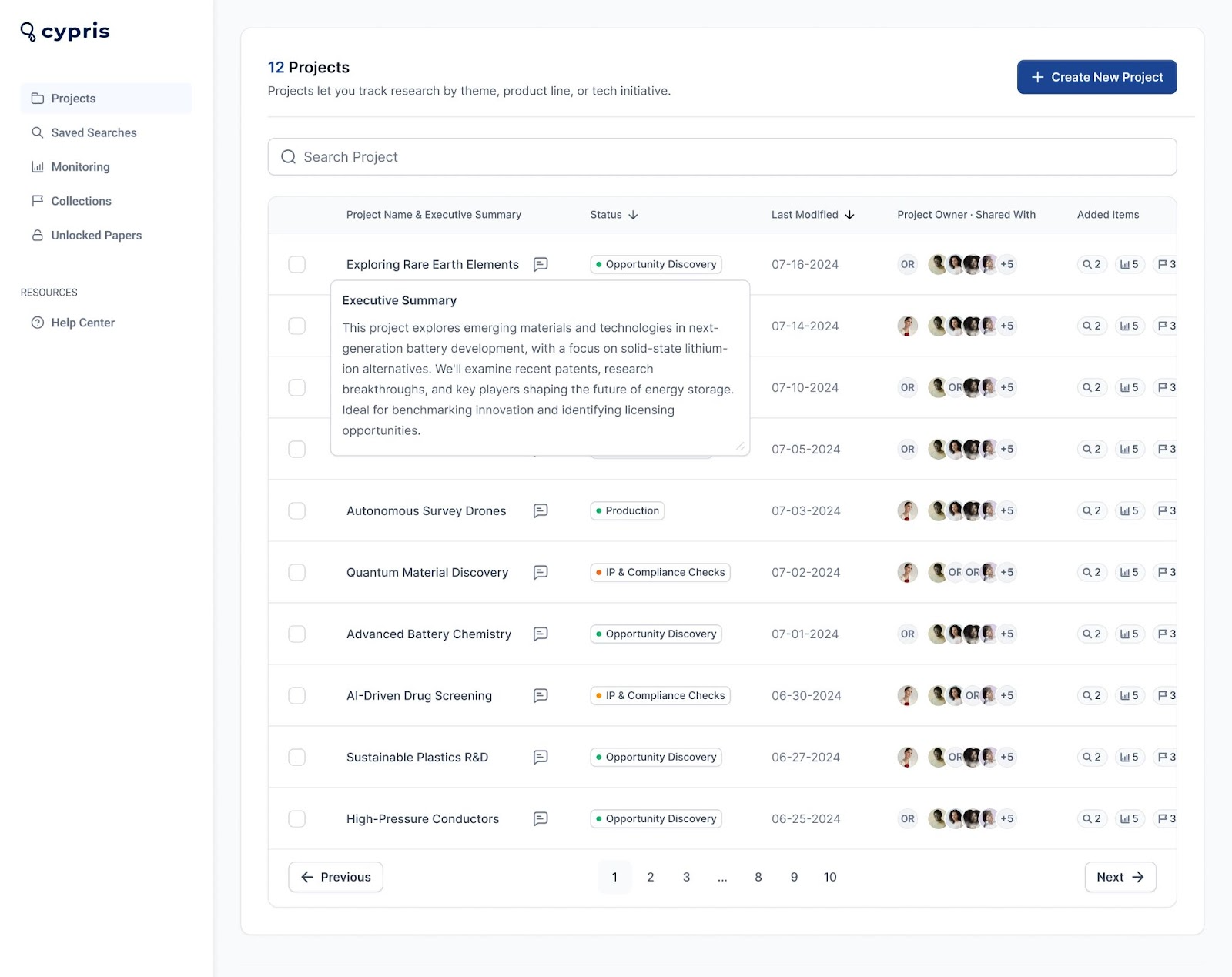
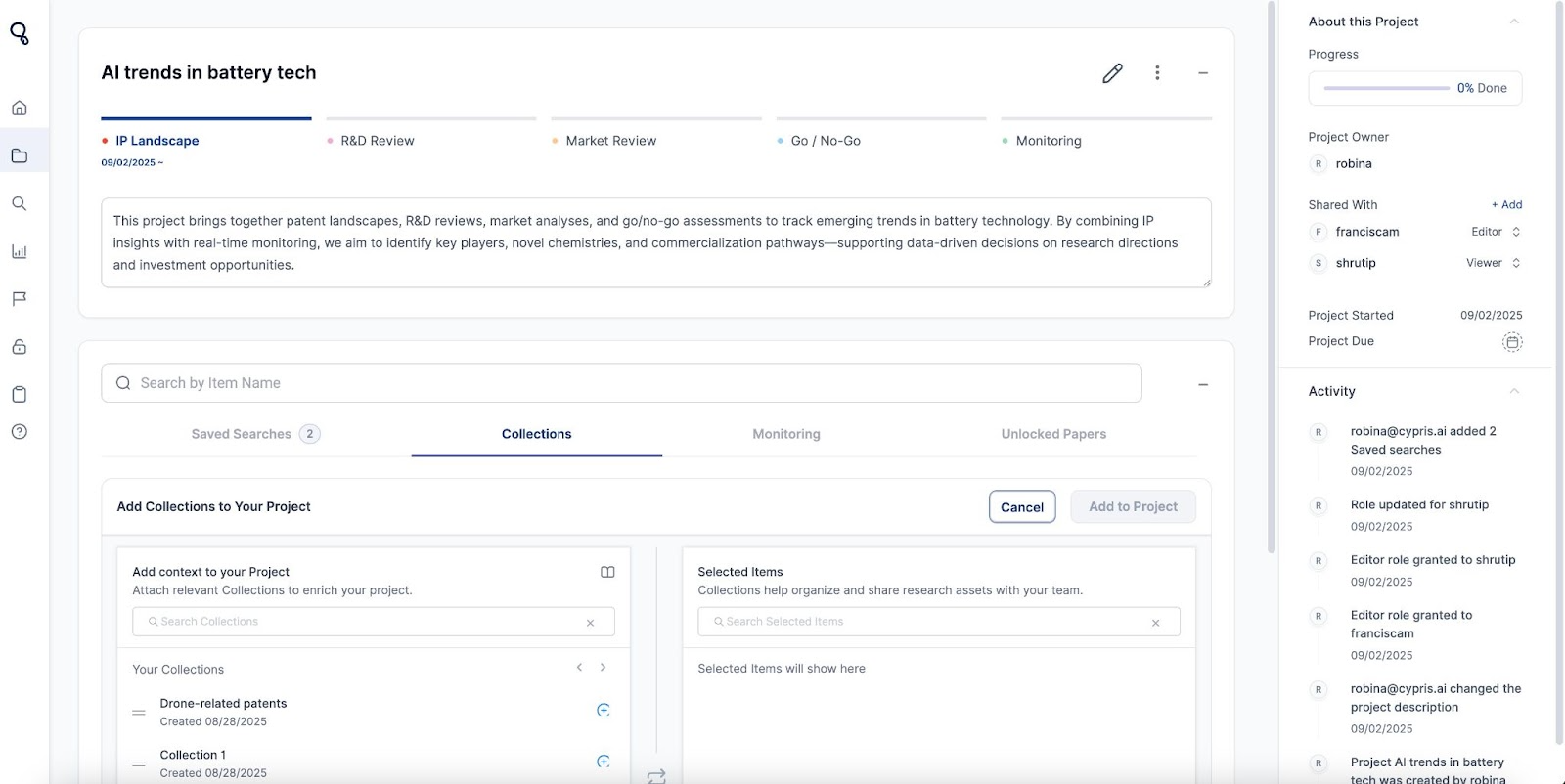
We’re excited to announce a major update to Projects—a feature you may already know, now reimagined as a smarter, more collaborative workspace for R&D teams.
The new Projects experience lets you group saved searches, collections, monitoring reports, and more under one umbrella—while tracking progress, customizing workflows, and collaborating seamlessly, all without switching tools.
Here’s what’s new:
Shared Access, Instantly
Add content—like saved searches, monitoring reports, collections, and research papers—directly to projects. Everything you add is instantly visible to your collaborators, so the whole team stays aligned.
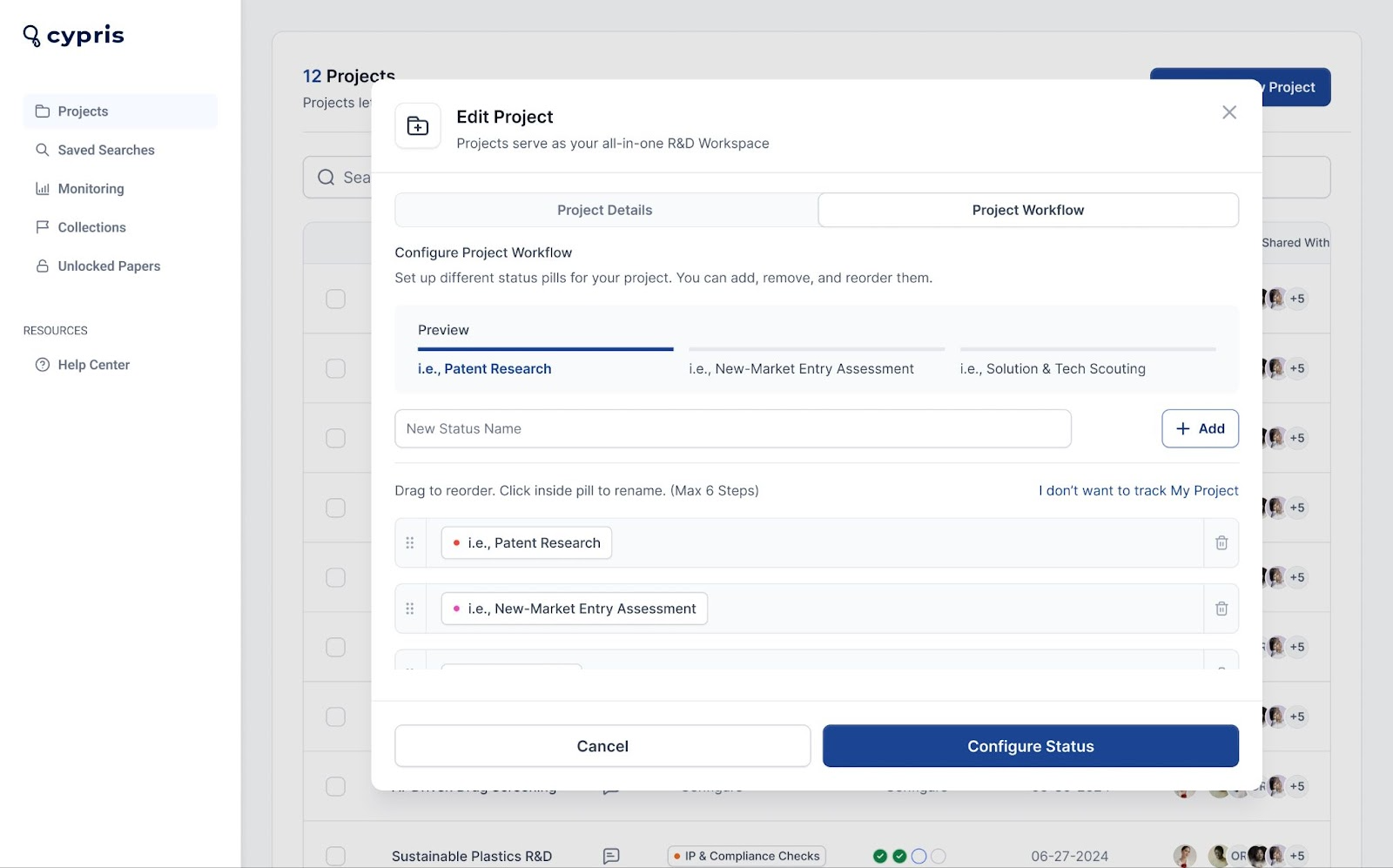
Custom Workflows & Progress Tracking
Define project stages using custom status labels and track progress. Whether your team is evaluating patents, prototyping, or analyzing markets, Projects adapts to your workflow.
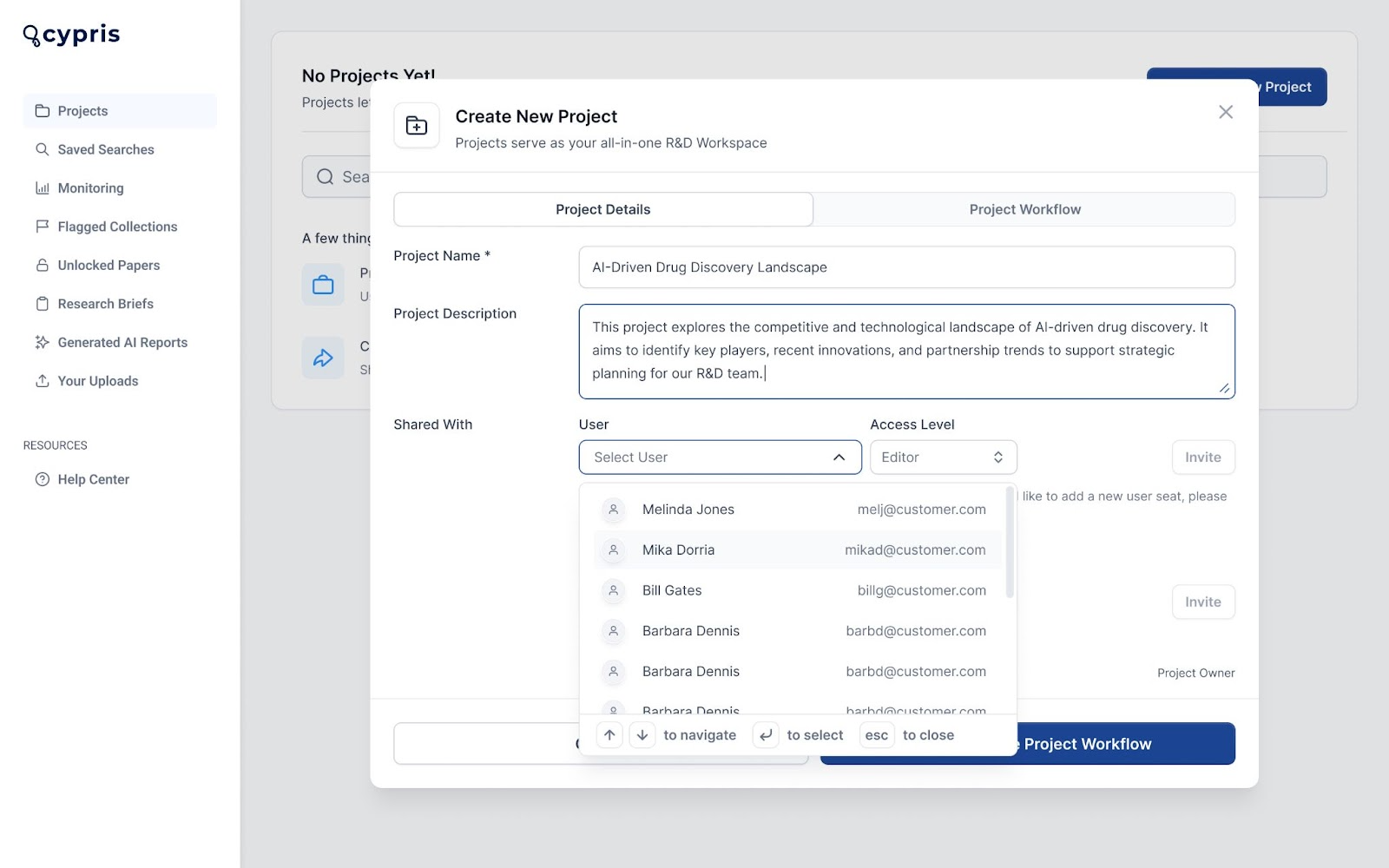
Smarter Collaboration & Role Management
Assign owners, add contributors with view or edit access, and securely share projects across your organization with role-based permissions.
Future Enhancements Coming to Projects
Soon, you’ll be able to add internal files, and research briefs directly to your projects—making Cypris a true system of record for innovation. Looking ahead, Projects will integrate further with our AI, enabling secure Q&A on your materials, whitespace insights, and AI-powered prior art searches—all in a closed, enterprise-secure environment.
Have questions or want help getting started? Reach out to your Cypris team directly.
.avif)